PMO Portfolio Game to symulacja zarządzania portfelem projektów: student wybiera projekty i platformy, układa harmonogram, a potem — jeśli prowadzący włączy etap realizacji — prowadzi portfel przez rundy pełne zdarzeń.
Otwórz link otrzymany od prowadzącego. Język zmienisz przełącznikiem PL / EN w prawym górnym rogu — w każdej chwili, bez utraty dokonanych wyborów.
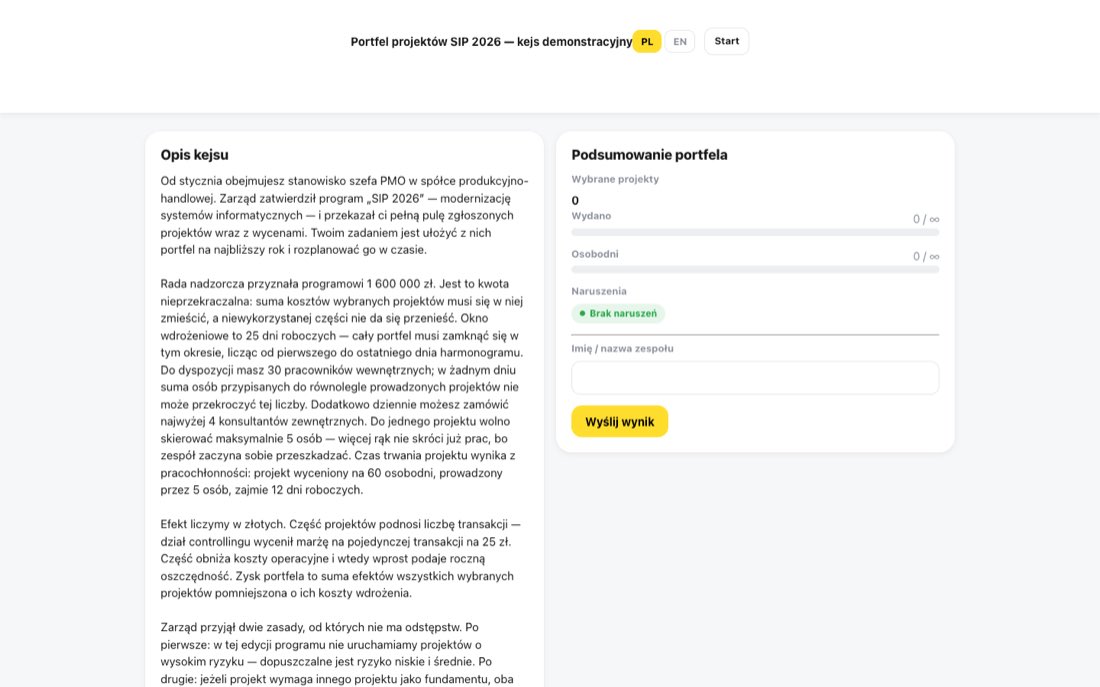
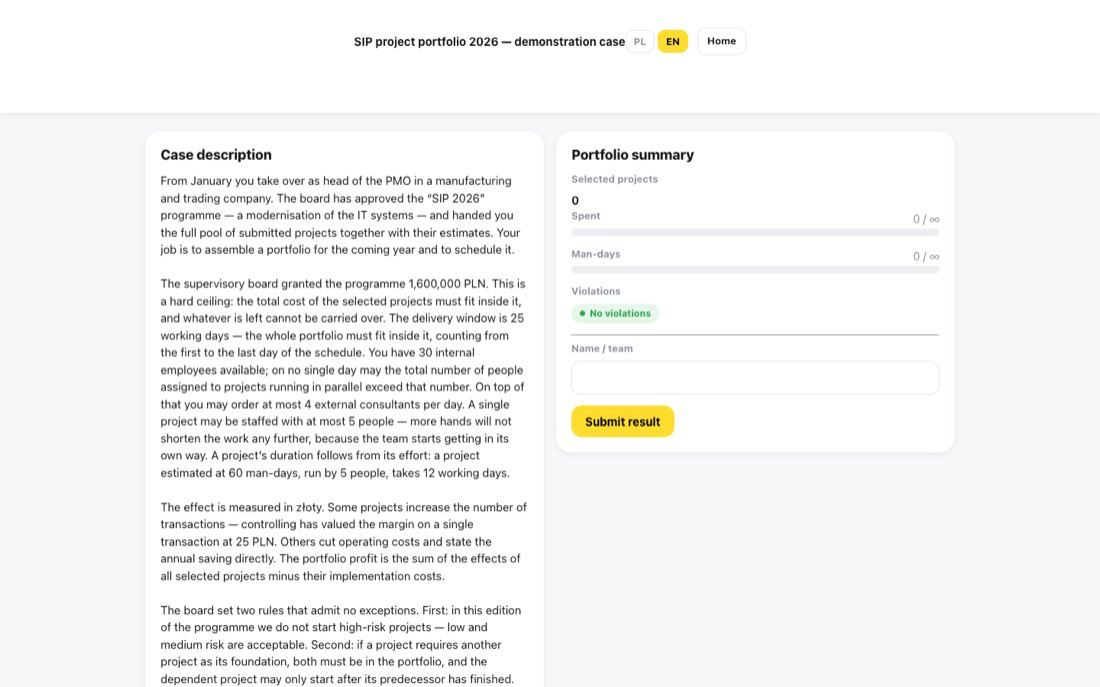
Opis kejsu i podsumowanie portfela.
2. Przeczytaj kejs i wpisz limity
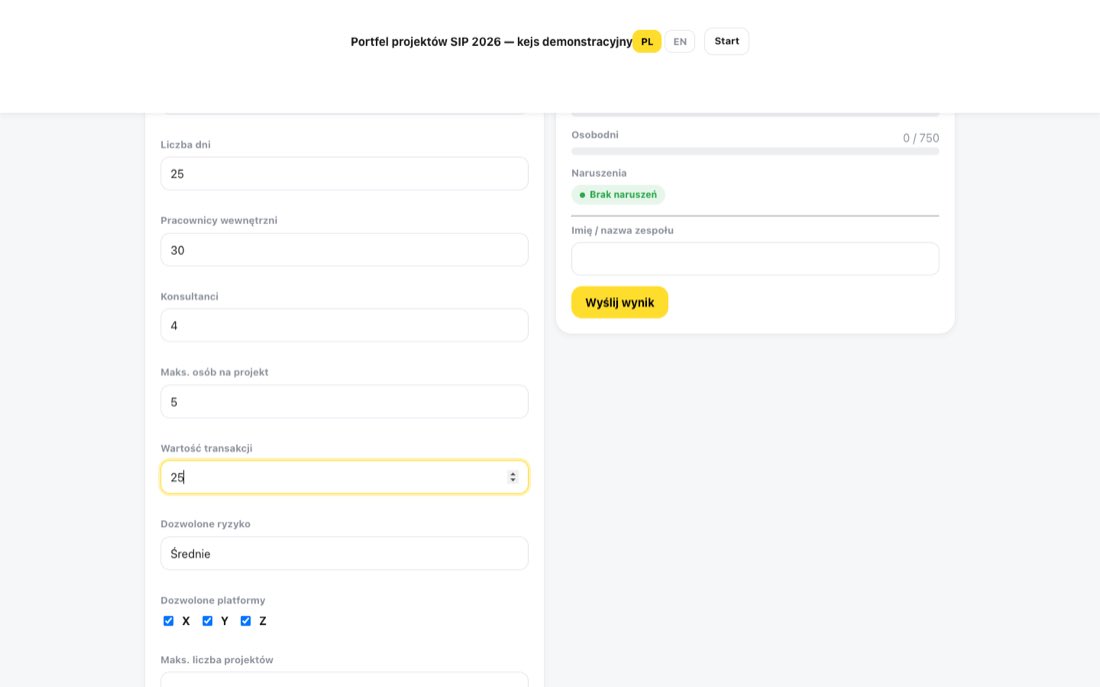
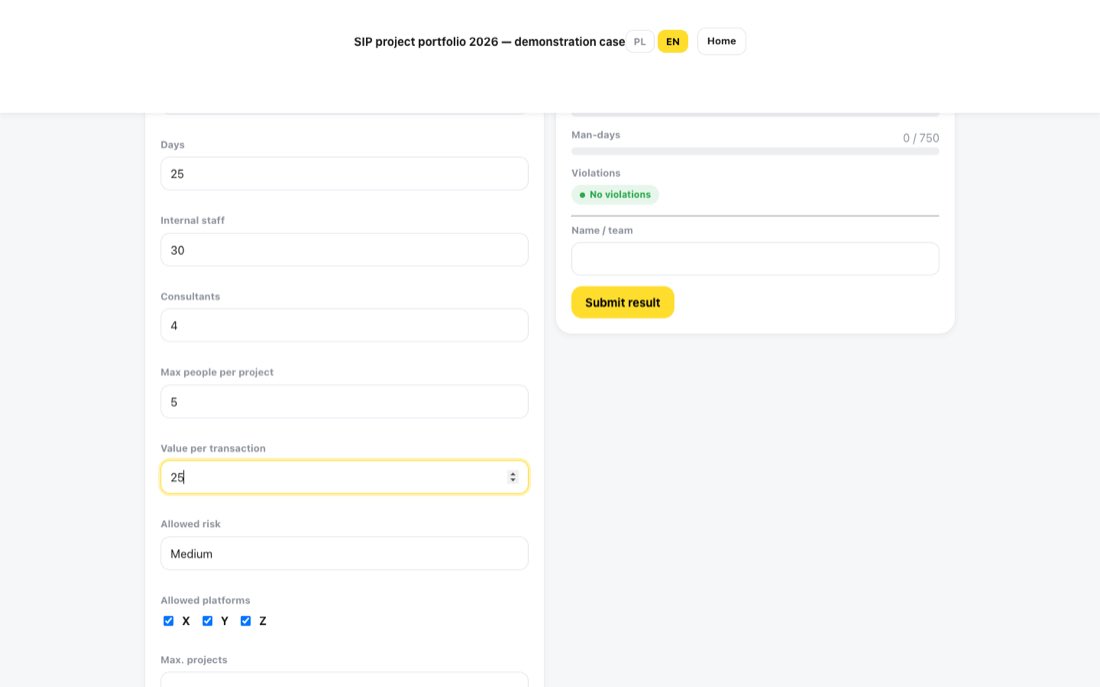
Przeczytaj Opis kejsu. Jeśli w grze widzisz sekcję Twoje limity, ograniczenia nie są podane wprost — odczytaj je z tekstu i wpisz: budżet, liczbę dni, pracowników, konsultantów, wartość transakcji i dozwolone ryzyko. To część zadania: prowadzący widzi, ile limitów odczytałeś poprawnie. Pole Maks. osób na projekt jest już wypełnione.
Podsumowanie portfela i ostrzeżenia liczą naruszenia według Twoich limitów. Wynik, który trafia do prowadzącego, serwer liczy według prawdziwych limitów kejsu — błędnie odczytany limit da Ci fałszywe poczucie, że plan jest poprawny.
Limity wpisane na podstawie opisu kejsu.
3. Wybierz projekty i platformy
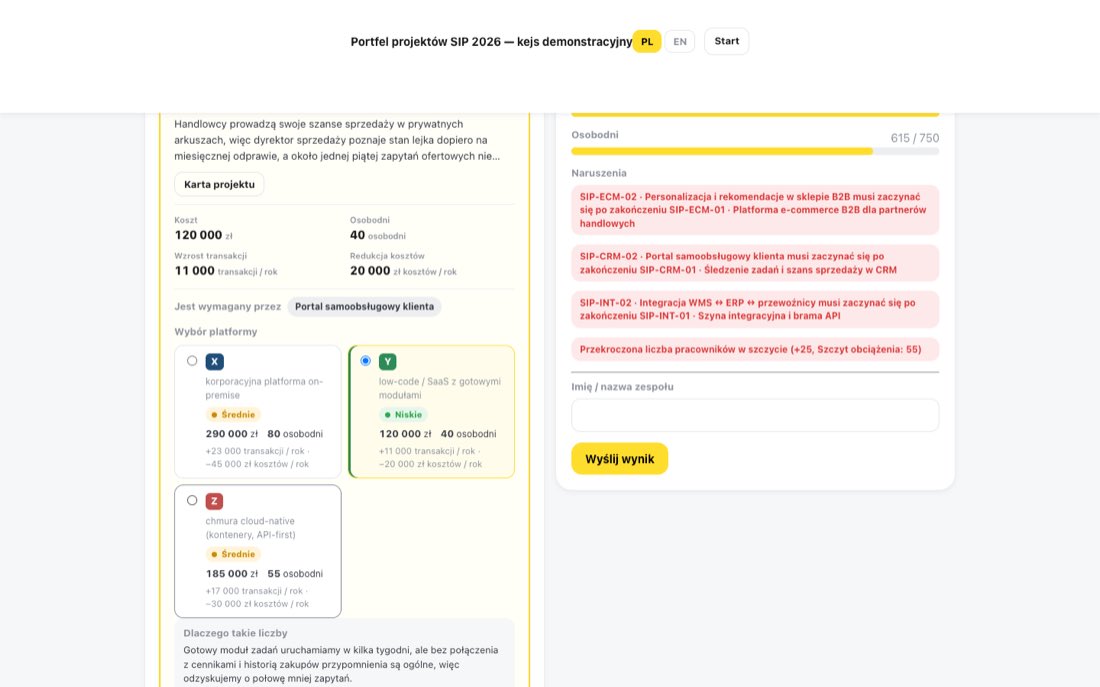
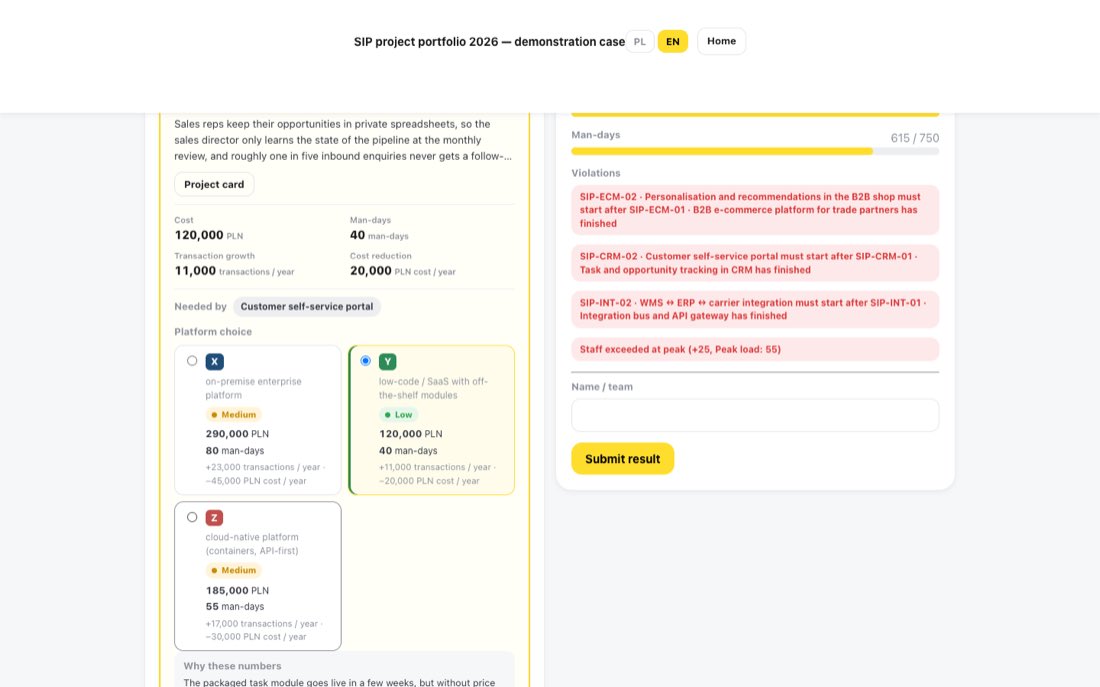
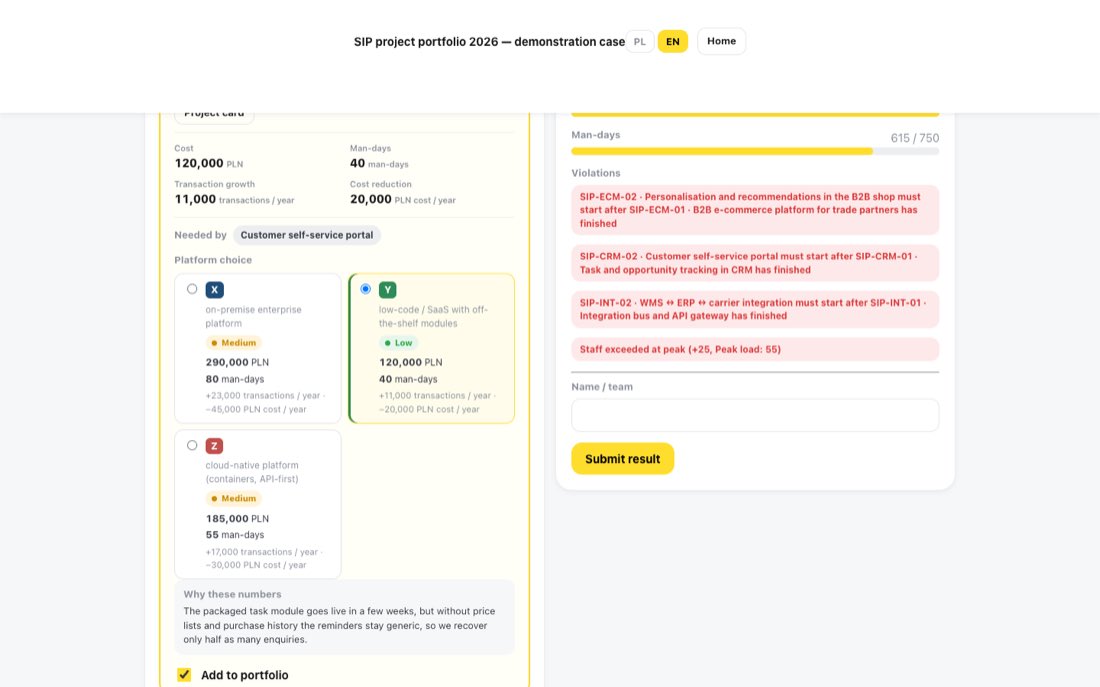
Każdy projekt realizujesz na dokładnie jednej platformie — nie da się podzielić projektu między dwie. Różne projekty w portfelu mogą natomiast korzystać z różnych platform, a to, co projekt kosztuje i daje, zależy od wybranej platformy. W polu Wybór platformy porównasz koszt, osobodni, efekt biznesowy i — co ważne — ryzyko wariantu. Uzasadnienie liczb znajdziesz pod Dlaczego takie liczby. Tańszy wariant może mieć ryzyko, którego zasady kejsu nie dopuszczają. Projekt dodajesz zaznaczeniem Do portfela.
Warianty platformowe: każdy ma własny koszt, efekt, pracochłonność i ryzyko.
4. Karta projektu
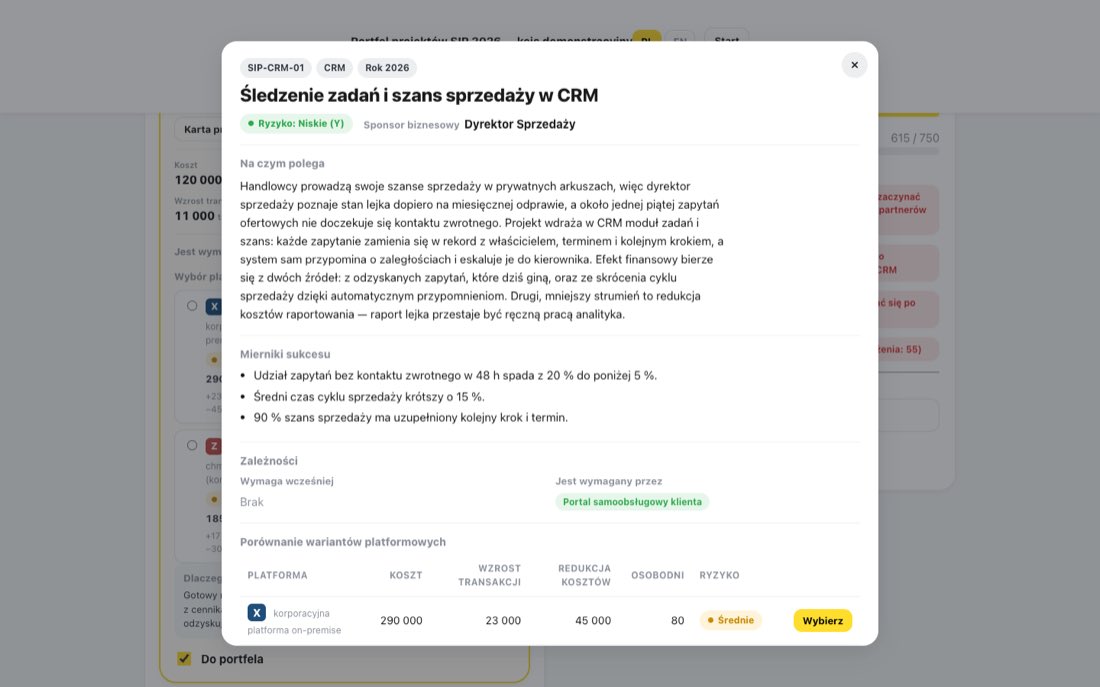
Przycisk Karta projektu otwiera pełny opis: Na czym polega, Mierniki sukcesu, Zależności (Wymaga wcześniej i Jest wymagany przez) oraz Porównanie wariantów platformowych, gdzie wariant wybierasz przyciskiem Wybierz.
Projekt zależny musi mieć w portfelu swojego poprzednika i może ruszyć dopiero po jego zakończeniu.
Karta projektu.
5. Ułóż harmonogram
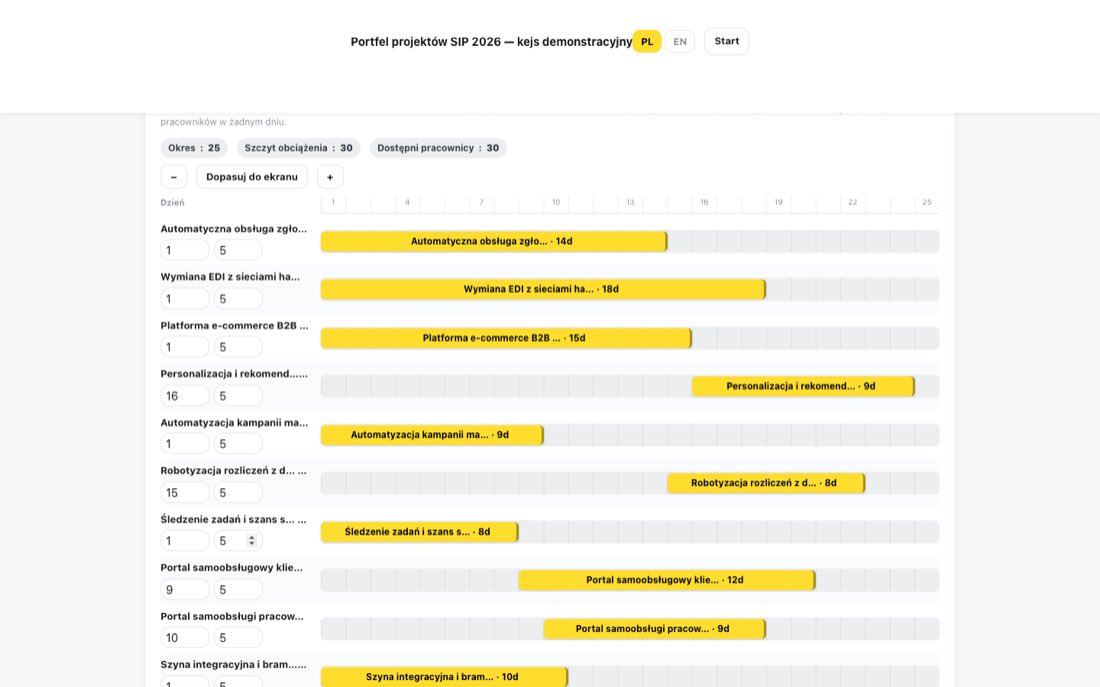
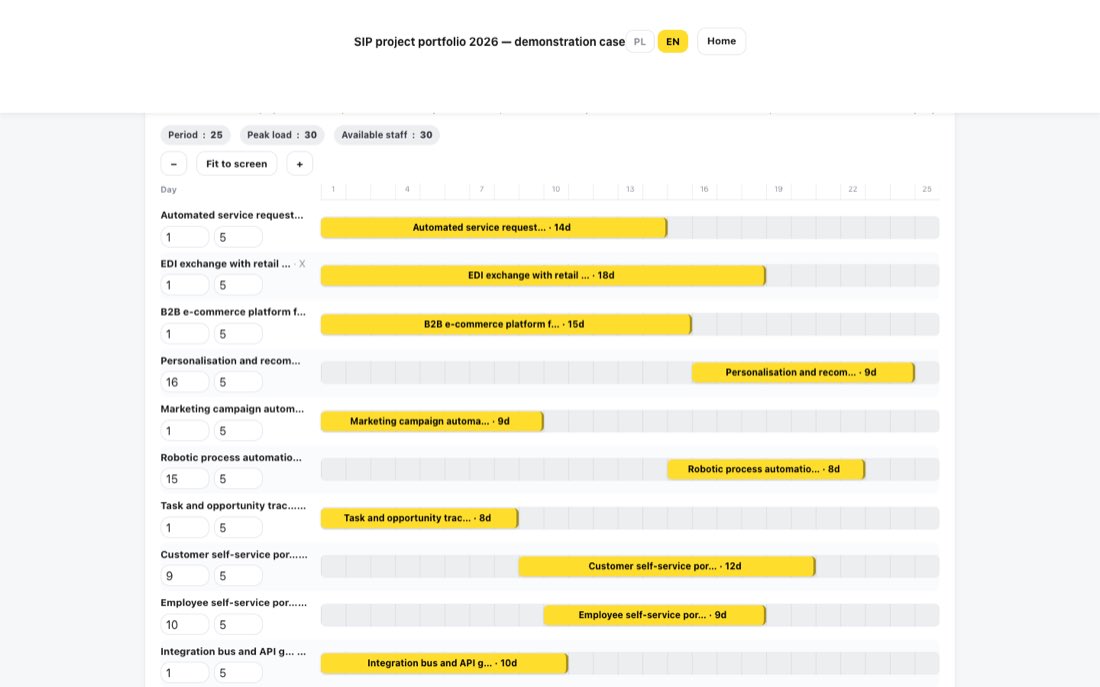
W sekcji Diagram Gantta — harmonogram każdemu projektowi ustaw Dzień startu i Zespół (osób). Czas trwania = osobodni ÷ zespół. Możesz też przeciągnąć pasek w poziomie (zmienia dzień startu) albo jego prawą krawędź (zmienia wielkość zespołu). Pilnuj, by Szczyt obciążenia nie przekroczył wartości Dostępni pracownicy; czerwony pasek oznacza naruszenie.
Harmonogram z obciążeniem dokładnie na limicie pracowników.
6. Wyślij wynik
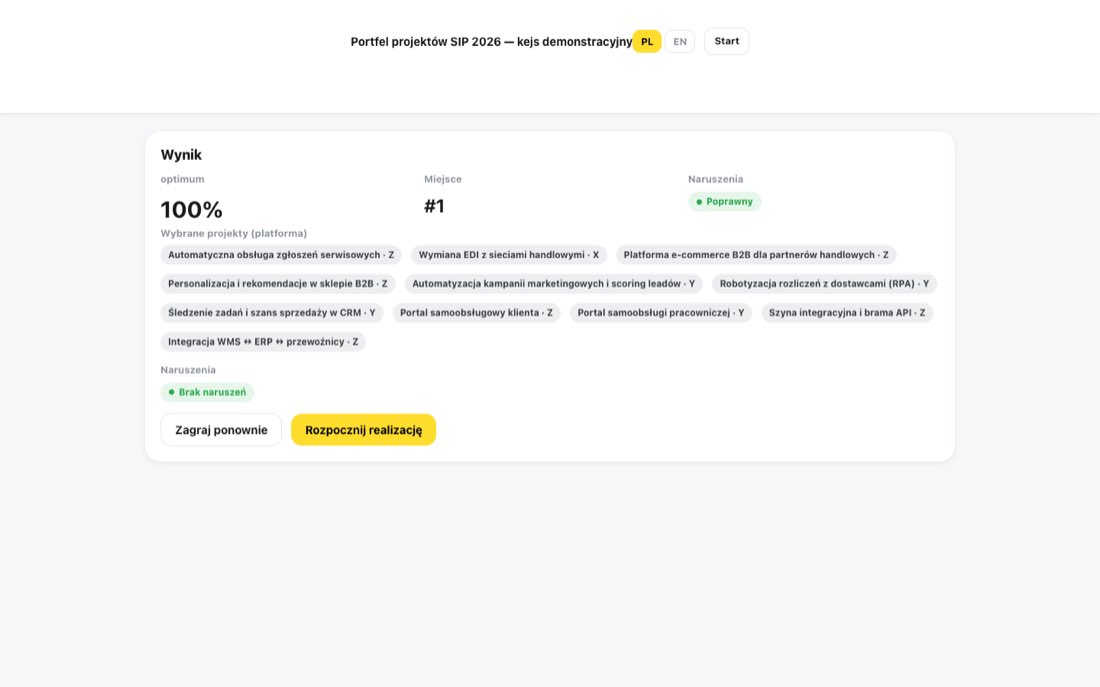
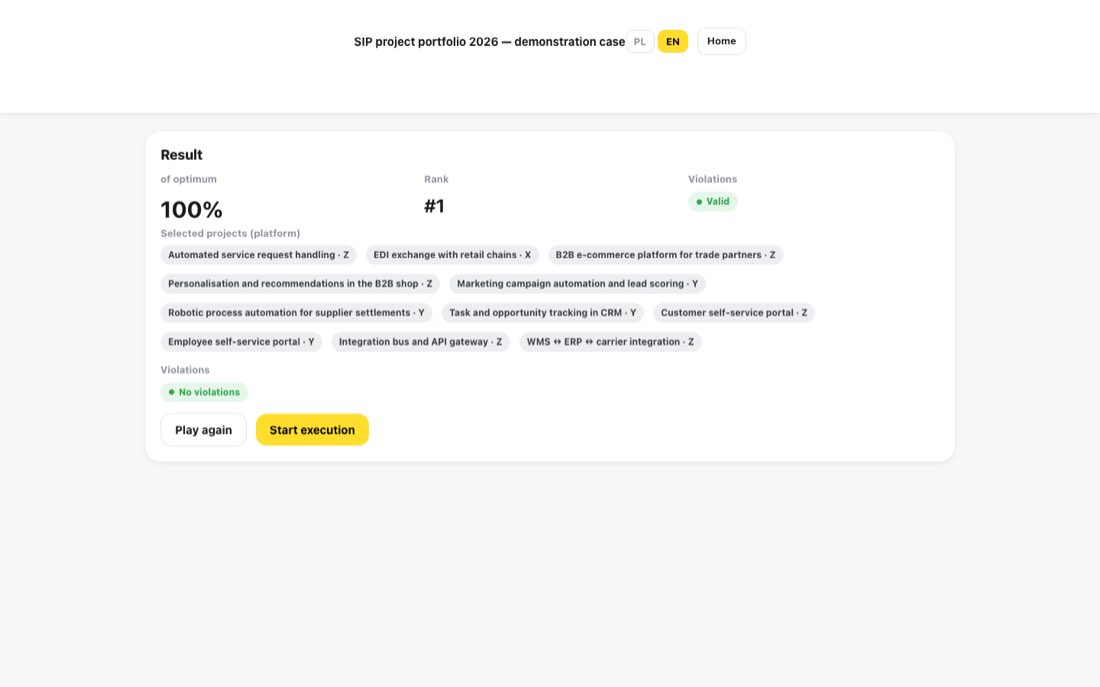
Wpisz Imię / nazwa zespołu i kliknij Wyślij wynik. Zobaczysz zysk, odsetek optimum, Miejsce w rankingu oraz ocenę portfela i harmonogramu. Każde wysłanie tworzy osobne zgłoszenie.
Wynik poprawnego planu.
7. Etap realizacji (jeśli prowadzący go włączył)
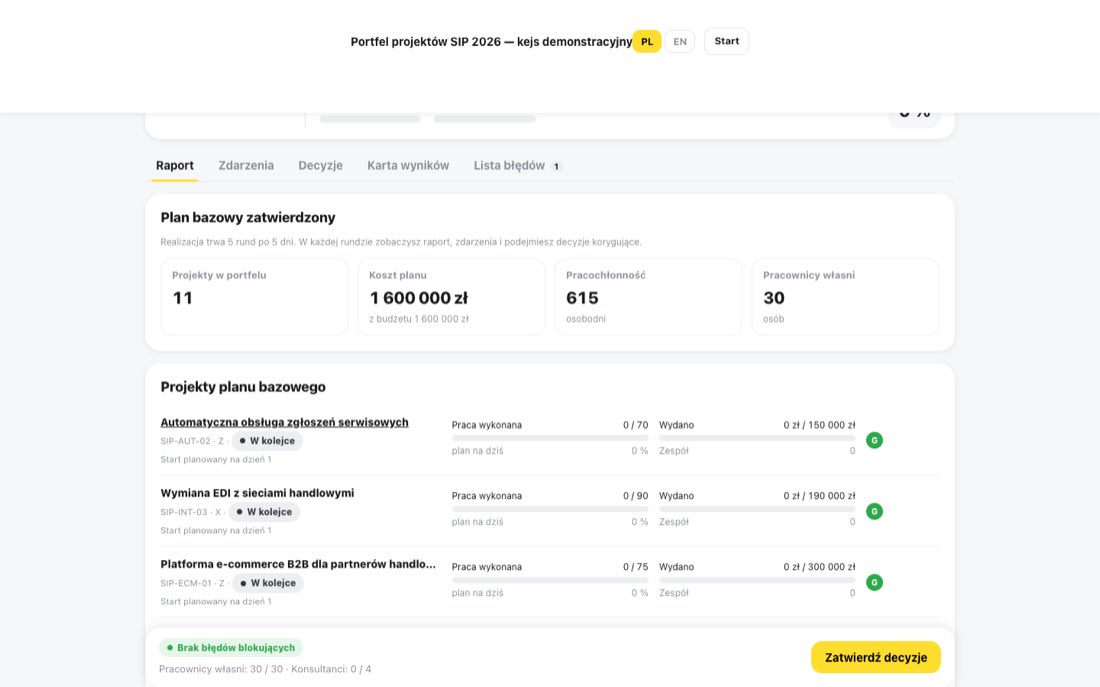
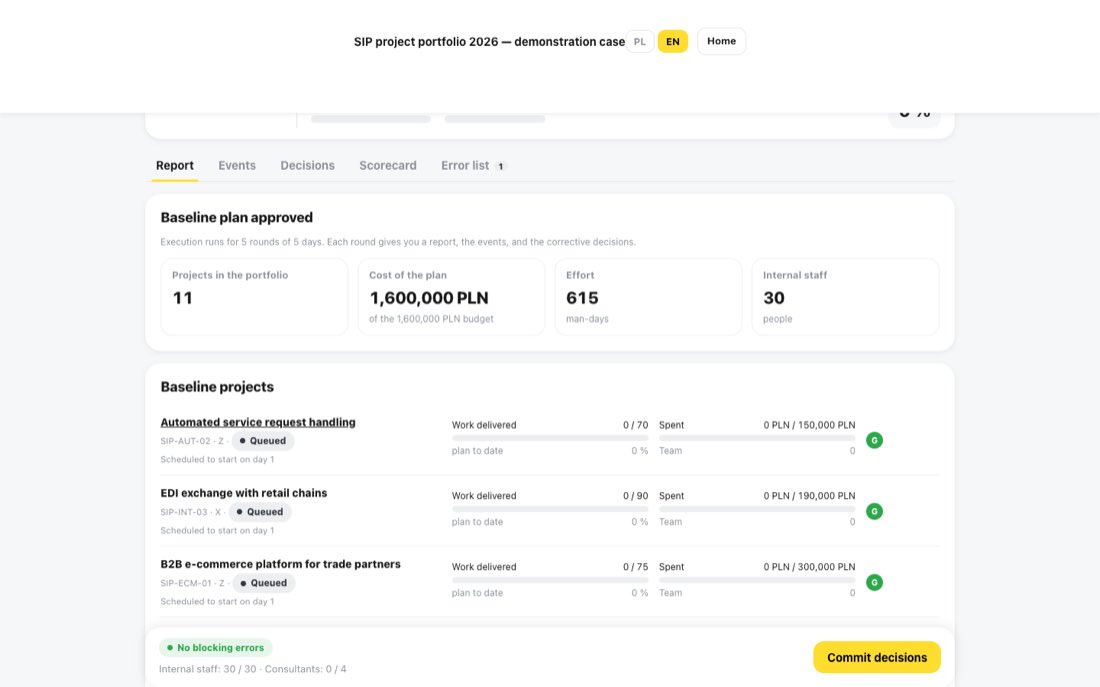
Pod wynikiem pojawi się Rozpocznij realizację — tylko dla planu, który spełnia ograniczenia. Od tej chwili plan jest wykonywany w rundach.
Zapisz adres strony. Po rozpoczęciu realizacji adres zawiera identyfikator Twojego przebiegu (?run=…). Otwierając ten adres, wrócisz do tej samej rundy na innym komputerze. Nie udostępniaj go innym — kto ma adres, ten steruje przebiegiem.
Początek realizacji.
Każda runda to kolejność: Raport → Zdarzenia → Decyzje → Zatwierdź decyzje. Zatwierdzonej rundy nie da się cofnąć.
Raport pokazuje różnicę między planem a wykonaniem: postęp, wydatki, prognozę zakończenia.
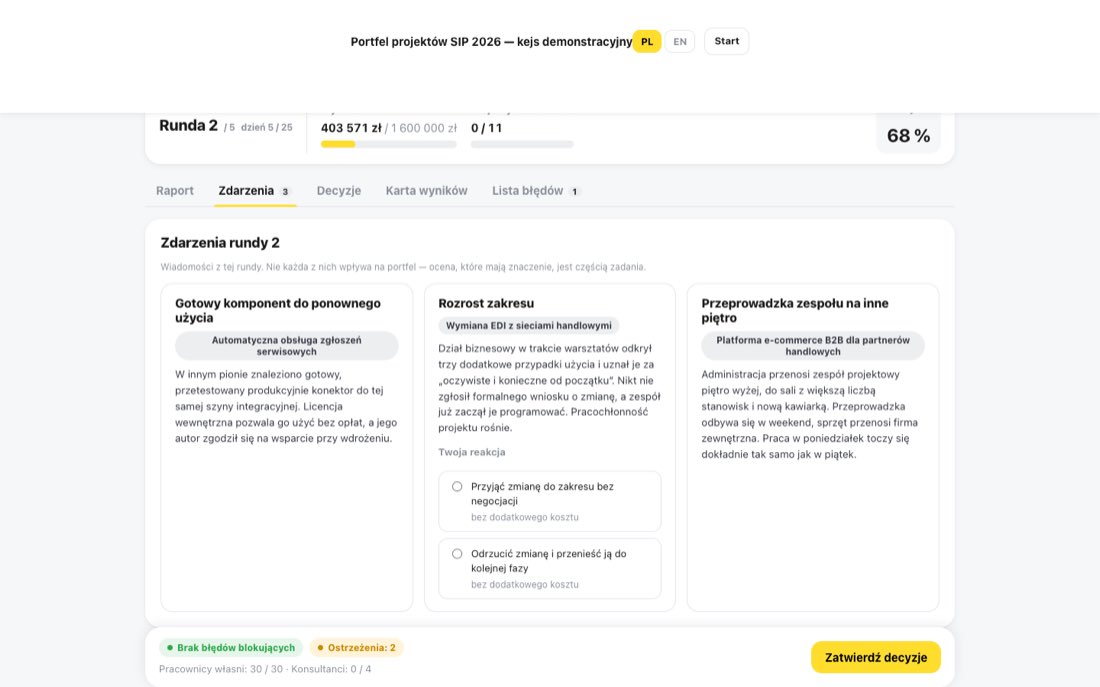
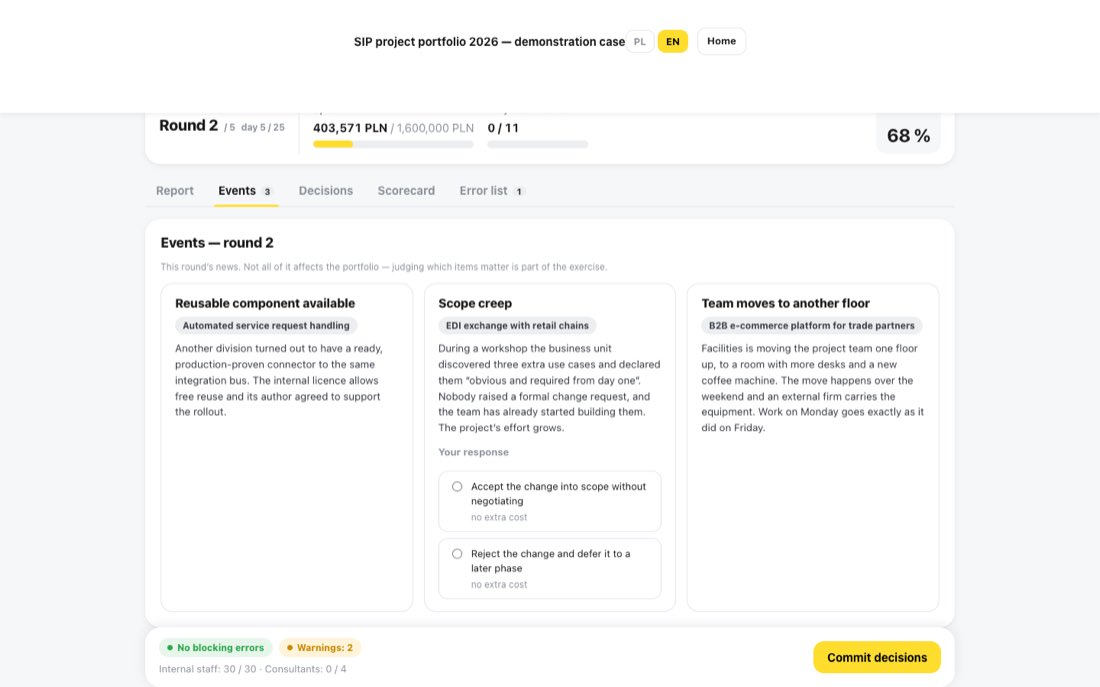
Zdarzenia to wiadomości z rundy. Nie każda ma znaczenie — ocena, które wpływają na portfel, jest częścią zadania. Część zdarzeń wymaga wyboru reakcji; bez wyboru zadziała skutek podstawowy.
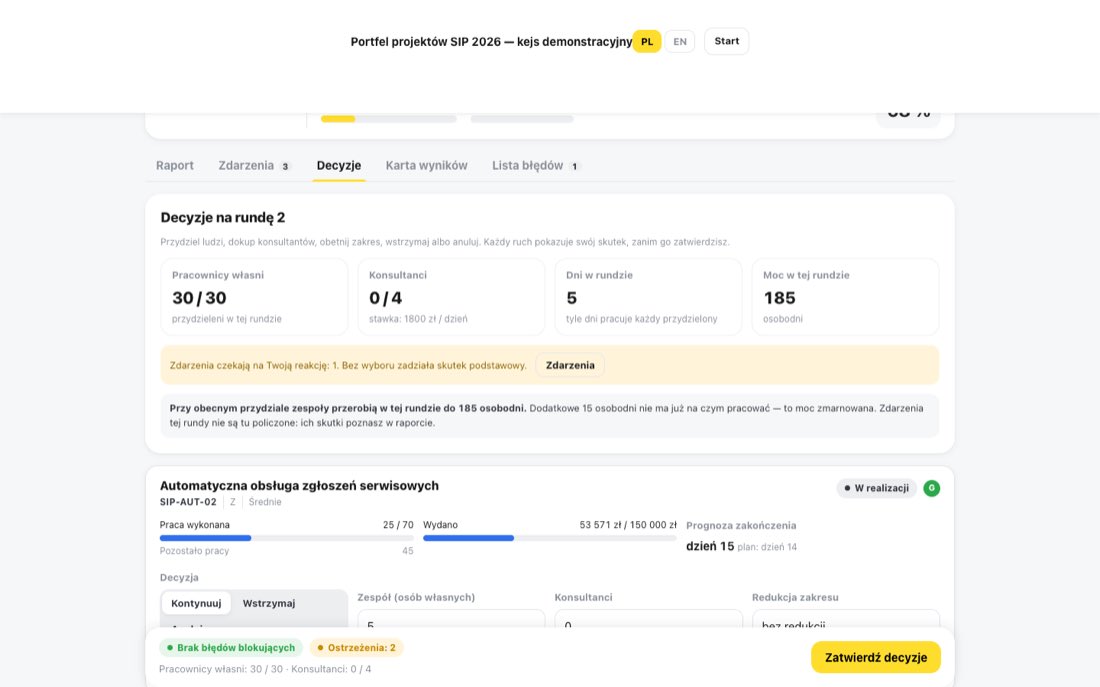
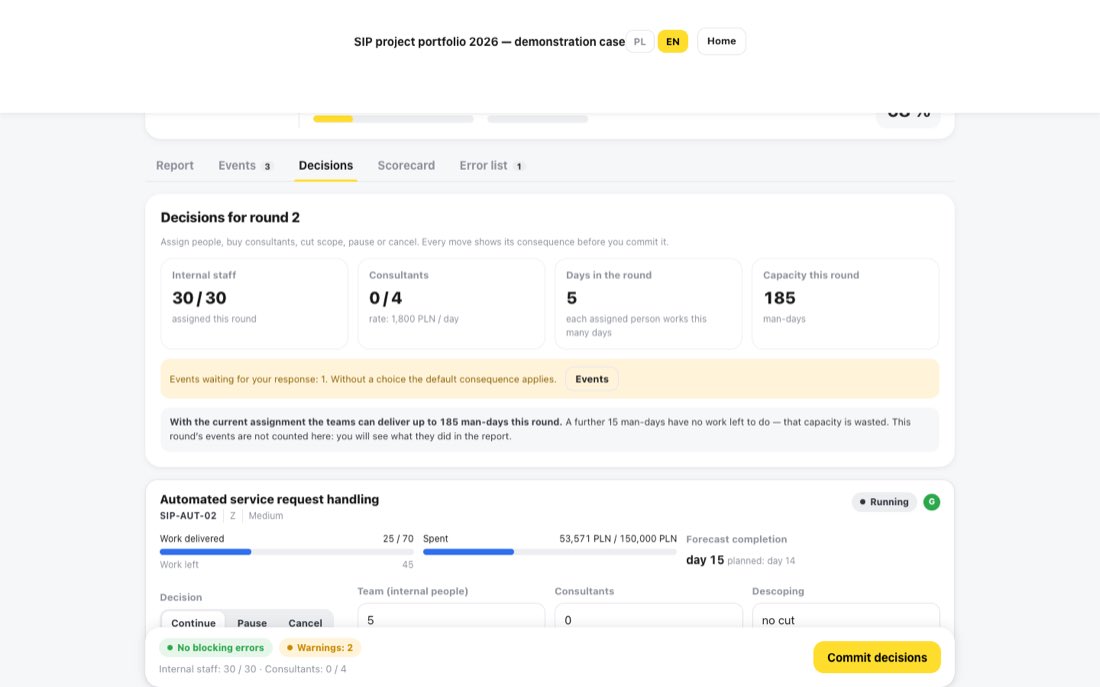
Decyzje: dla każdego projektu Kontynuuj, Uruchom, Wstrzymaj lub Anuluj, a także Zespół (osób własnych), Konsultanci i Redukcja zakresu. Każdy ruch pokazuje swój skutek przed zatwierdzeniem.
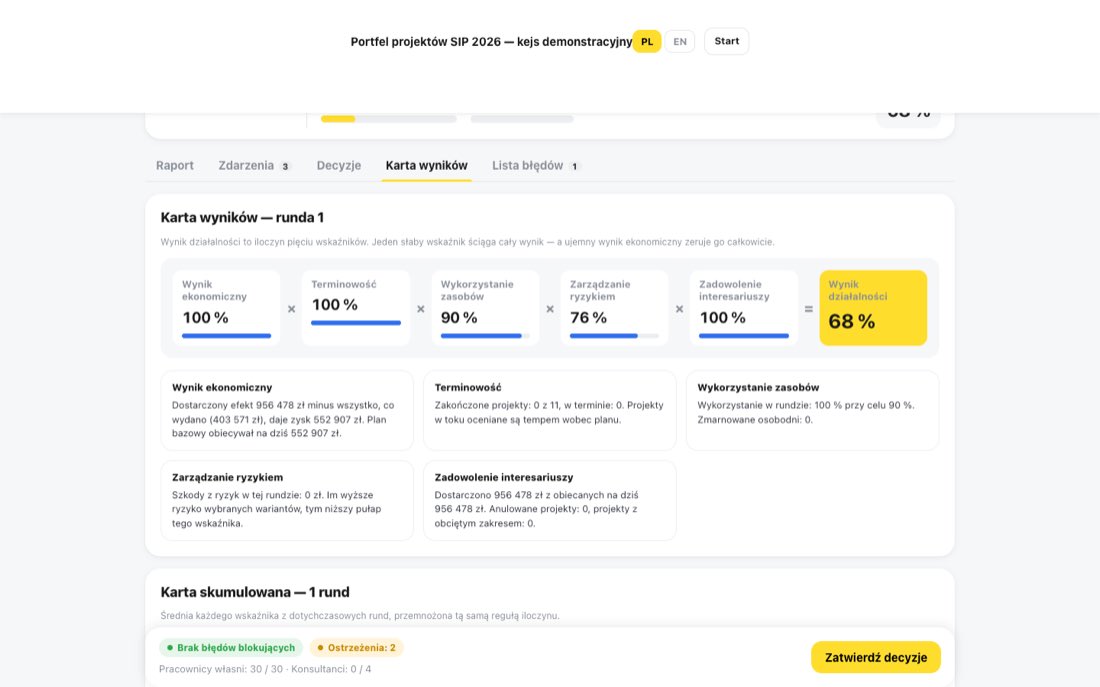
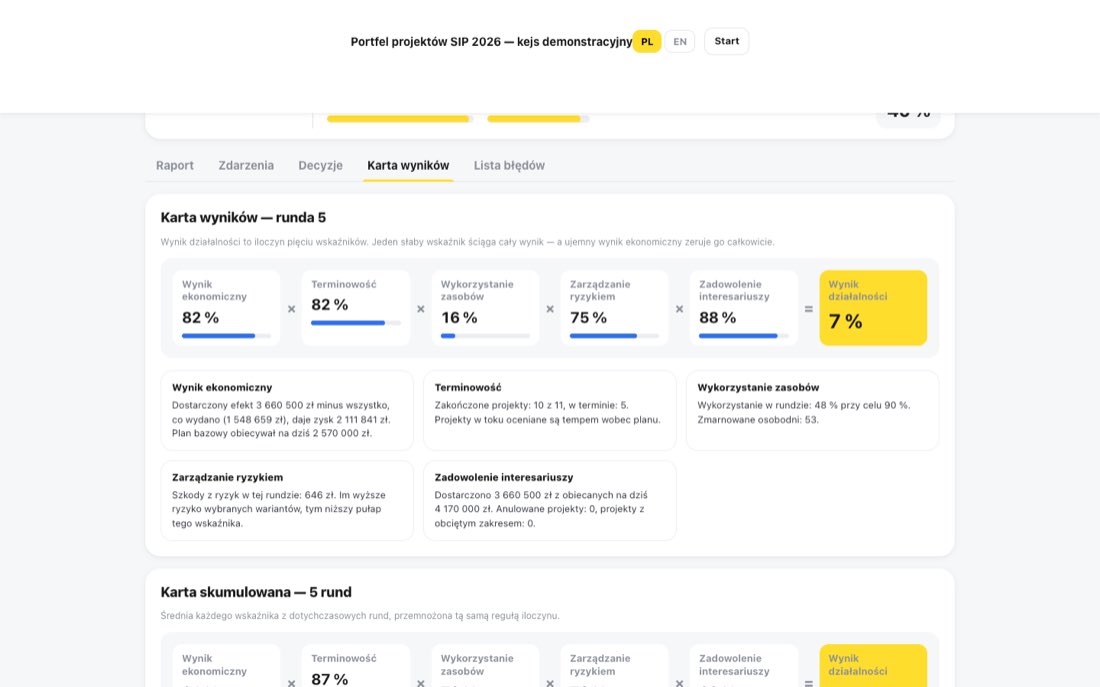
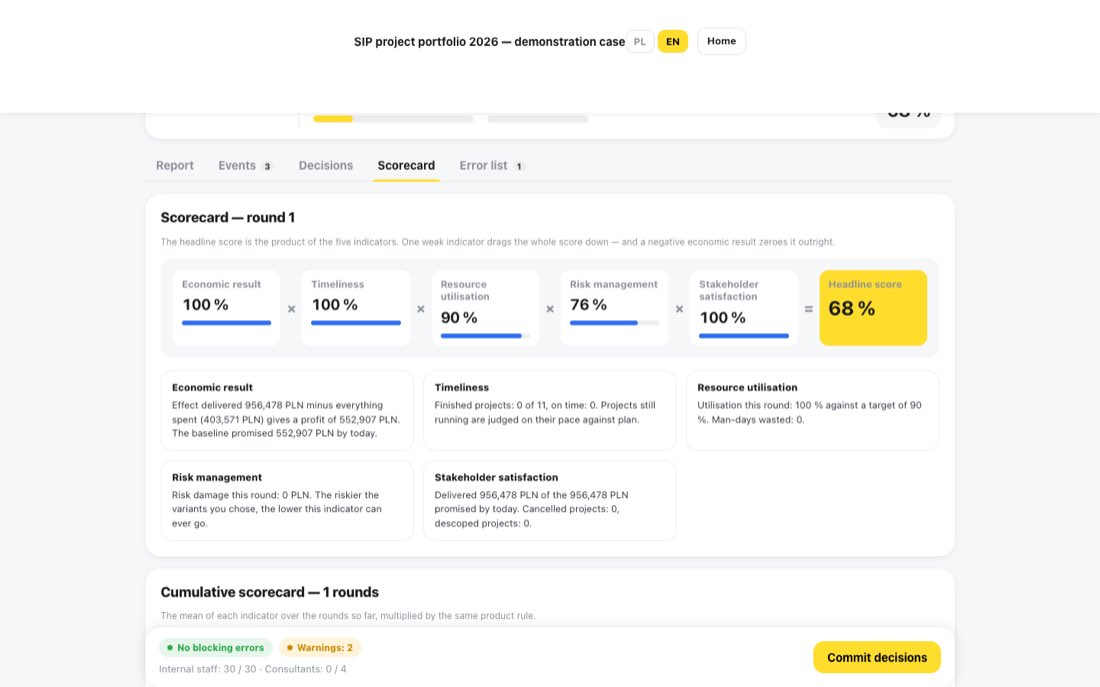
Karta wyników: pięć wskaźników mnożonych w wynik działalności. Jeden słaby wskaźnik ściąga cały wynik, a ujemny wynik ekonomiczny go zeruje.
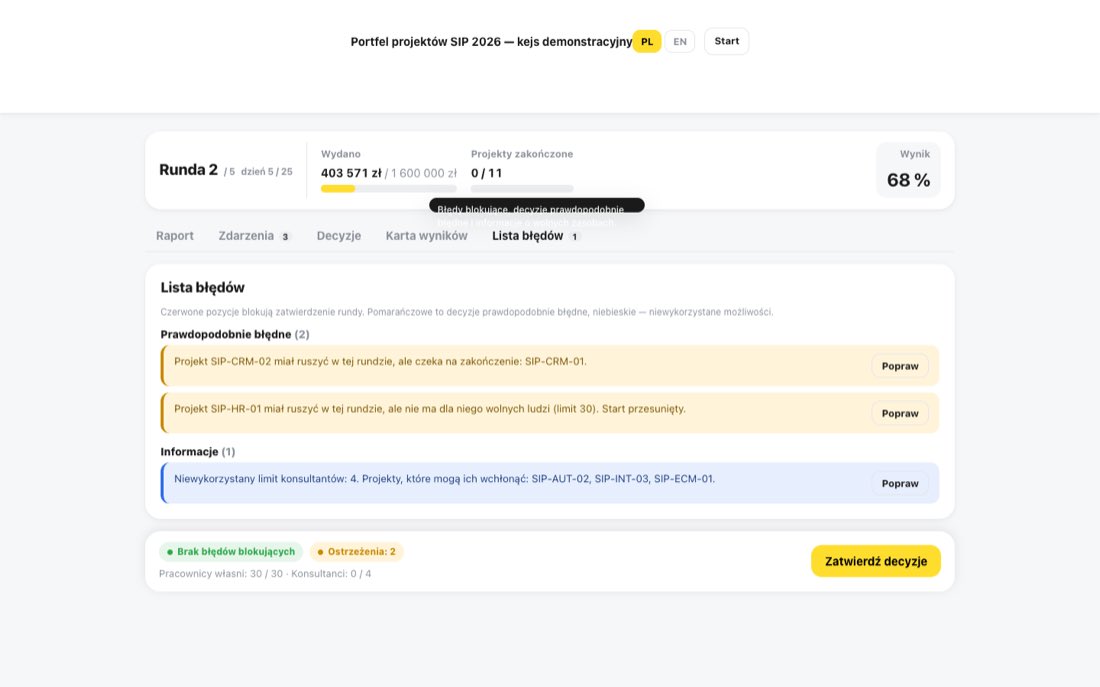
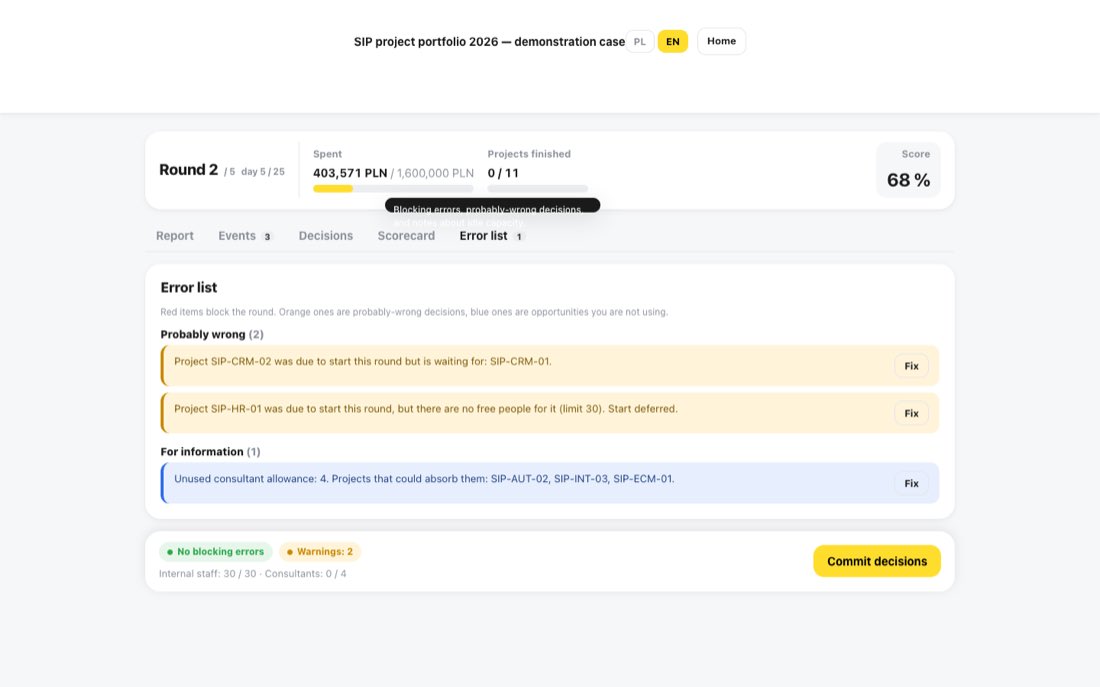
Lista błędów: czerwone pozycje blokują zatwierdzenie rundy, pomarańczowe to decyzje prawdopodobnie błędne, niebieskie — niewykorzystane możliwości. Przycisk Popraw przenosi do właściwego projektu.
Zdarzenia rundy — tylko część z nich wpływa na portfel.Decyzje korygujące.Karta wyników: iloczyn pięciu wskaźników.Lista błędów.
Zasady, które najczęściej decydują o wyniku
Ludzie są przydzielani na całą rundę. Jeśli poprzednik kończy się w środku rundy, jego zespół jest zajęty do jej końca, a następny projekt może ruszyć dopiero w kolejnej rundzie — chyba że zmniejszysz zespół kończącego się projektu i oddasz ludzi.
Konsultanci nie liczą się do limitu osób na projekt, ale płacisz za nich za całą rundę i zwykle pracują wolniej niż własny zespół.
Anuluj: wydane pieniądze przepadają, a projekt nie przynosi żadnego efektu.
Redukcja zakresu: mniej pracy, ale proporcjonalnie mniejszy efekt biznesowy i niższe zadowolenie interesariuszy.
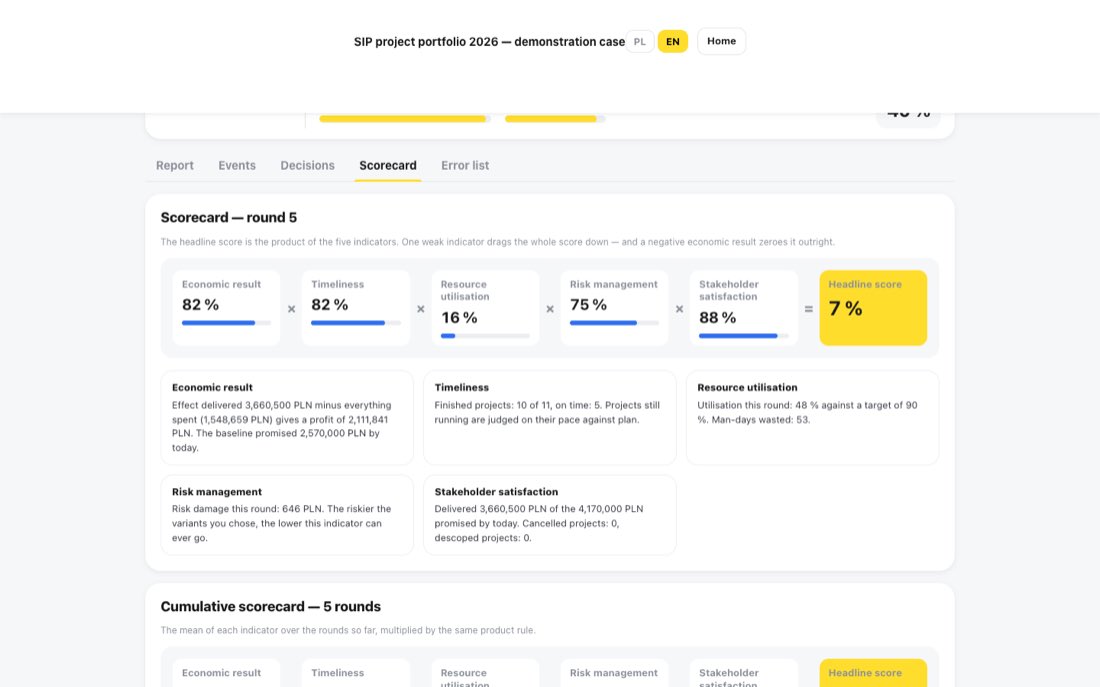
Karta wyników po ostatniej rundzie.
Dla prowadzącego
1. Logowanie
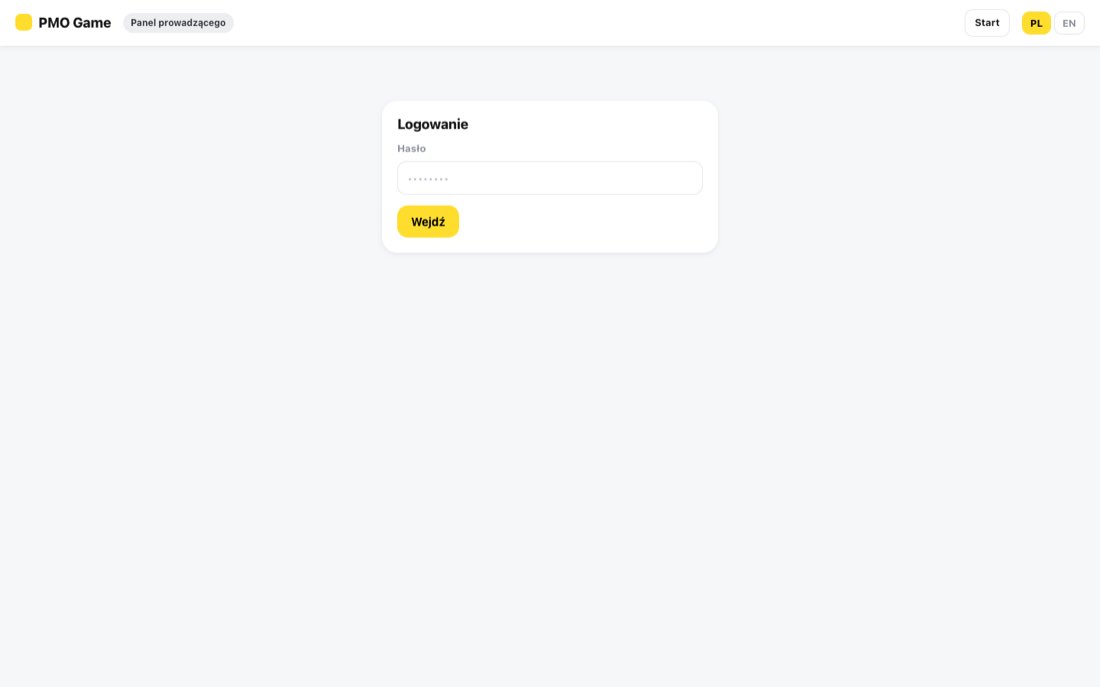
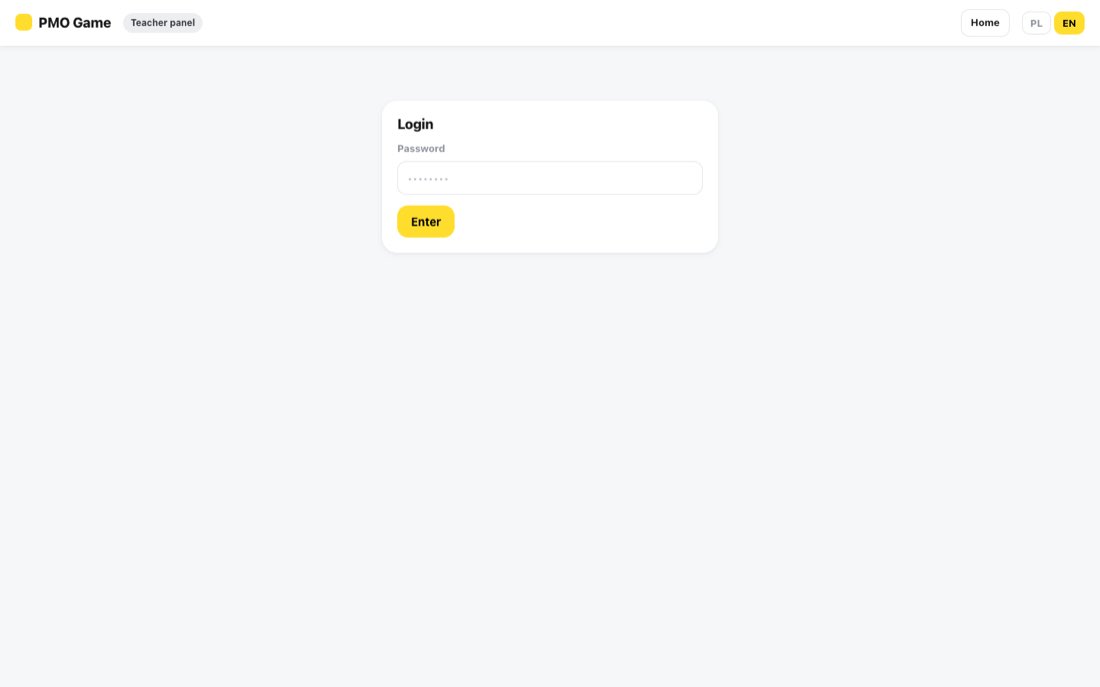
Panel jest pod adresem /admin. Hasło otrzymasz od administratora aplikacji. Wyloguj usuwa zapamiętane hasło z danego urządzenia.
Logowanie do panelu.
2. Gry i pakiety kejsów
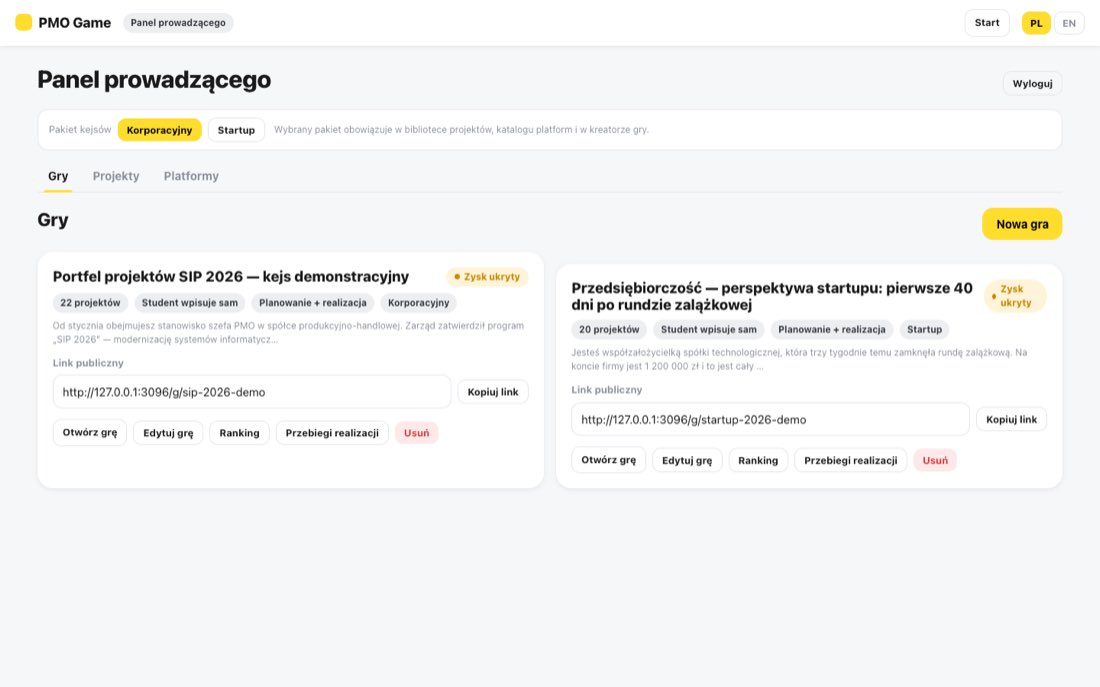
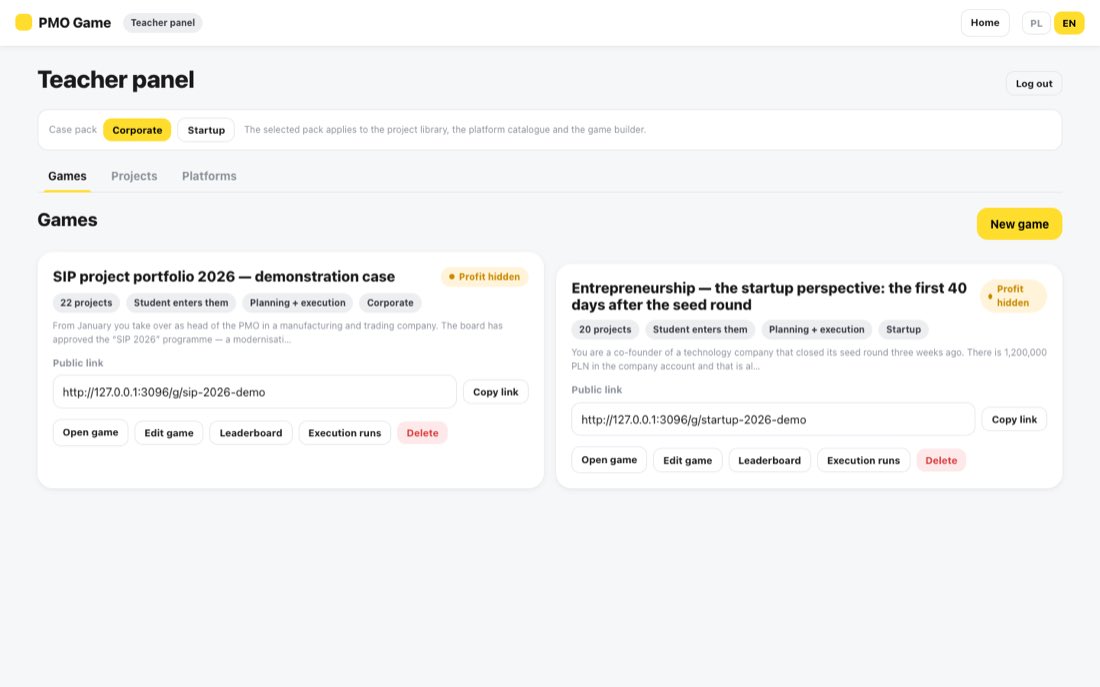
Nad zakładkami wybierasz Pakiet kejsów: Korporacyjny (program SIP w firmie) lub Startup (pierwsze tygodnie po rundzie zalążkowej). Pakiet obowiązuje w bibliotece projektów, platform i w kreatorze gry. Litery X, Y, Z znaczą w pakietach co innego, dlatego jedna gra korzysta z jednego pakietu.
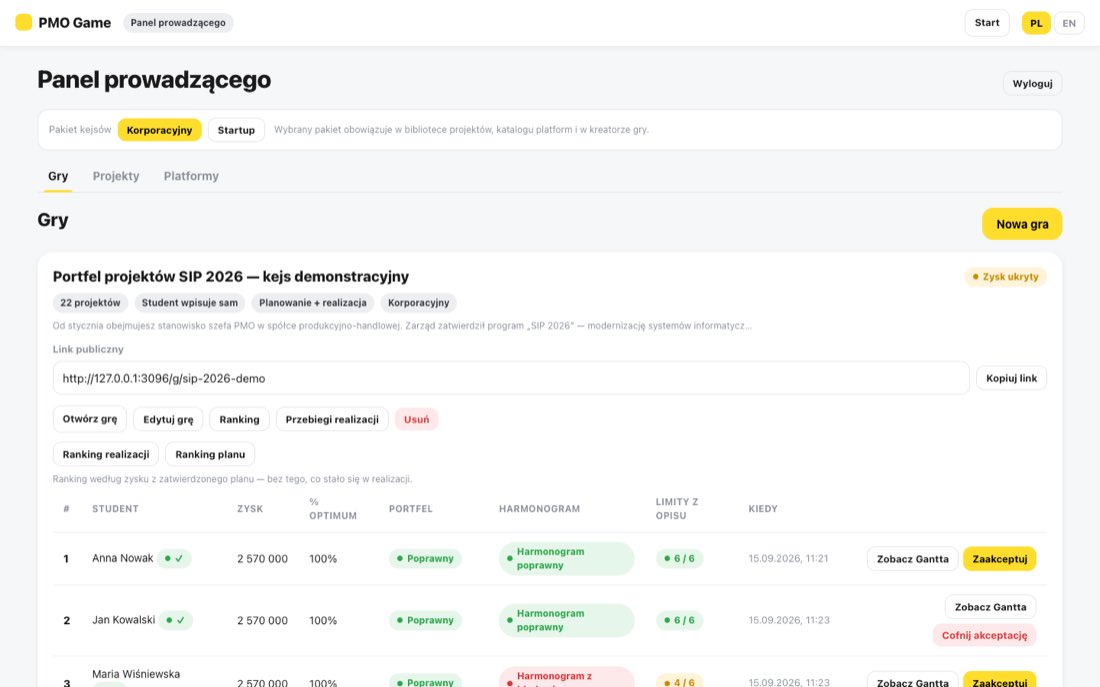
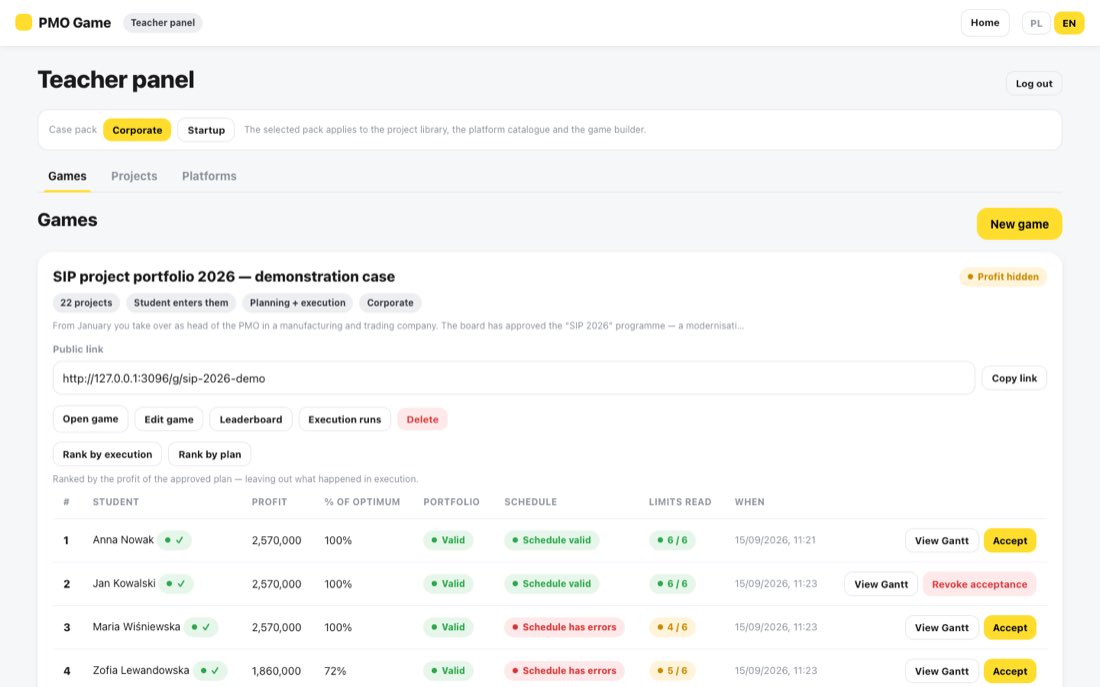
Obie gry demonstracyjne są gotowe do użycia. Na karcie gry: link publiczny i Kopiuj link (wyślij go grupie), Otwórz grę, Edytuj grę, Ranking, Przebiegi realizacji i Usuń.
Usunięcia gry nie da się cofnąć — tracisz też dostęp do jej zgłoszeń i przebiegów.
Lista gier z przełącznikiem pakietów.
3. Tworzenie i edycja gry
Nowa gra otwiera kreator. Najlepiej utworzyć osobną grę dla każdej grupy.
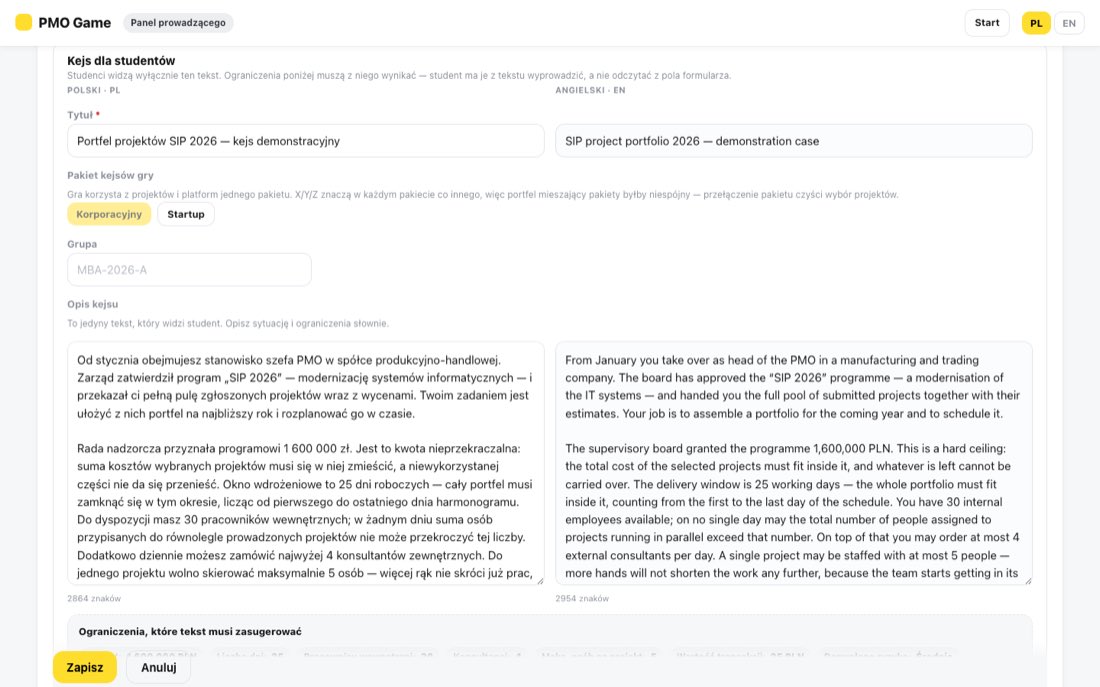
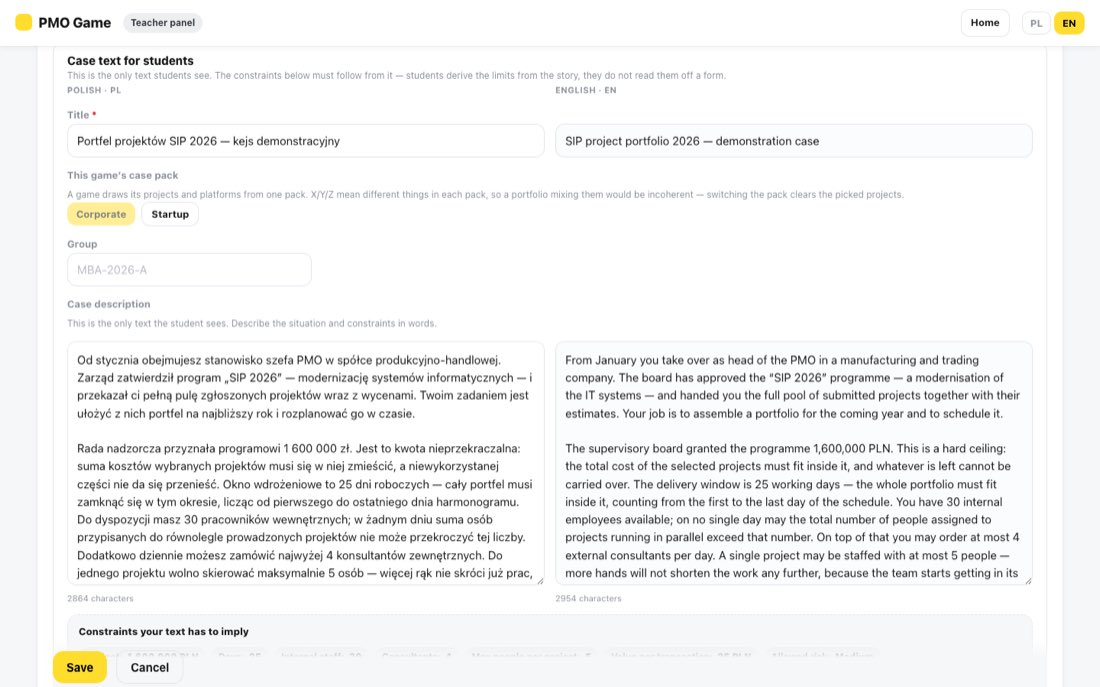
Kejs dla studentów — tytuł i opis po polsku i po angielsku. To jedyny tekst, który widzi student, więc ograniczenia opisz w nim słowami.
Projekty w grze — zaznacz projekty, spośród których studenci budują portfel.
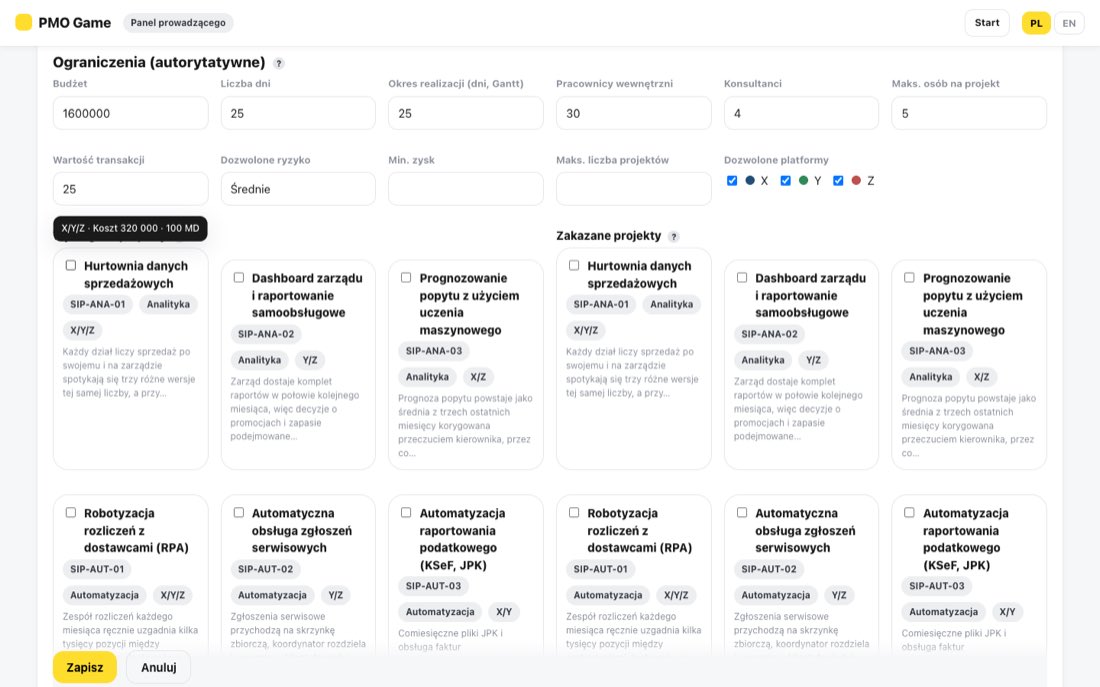
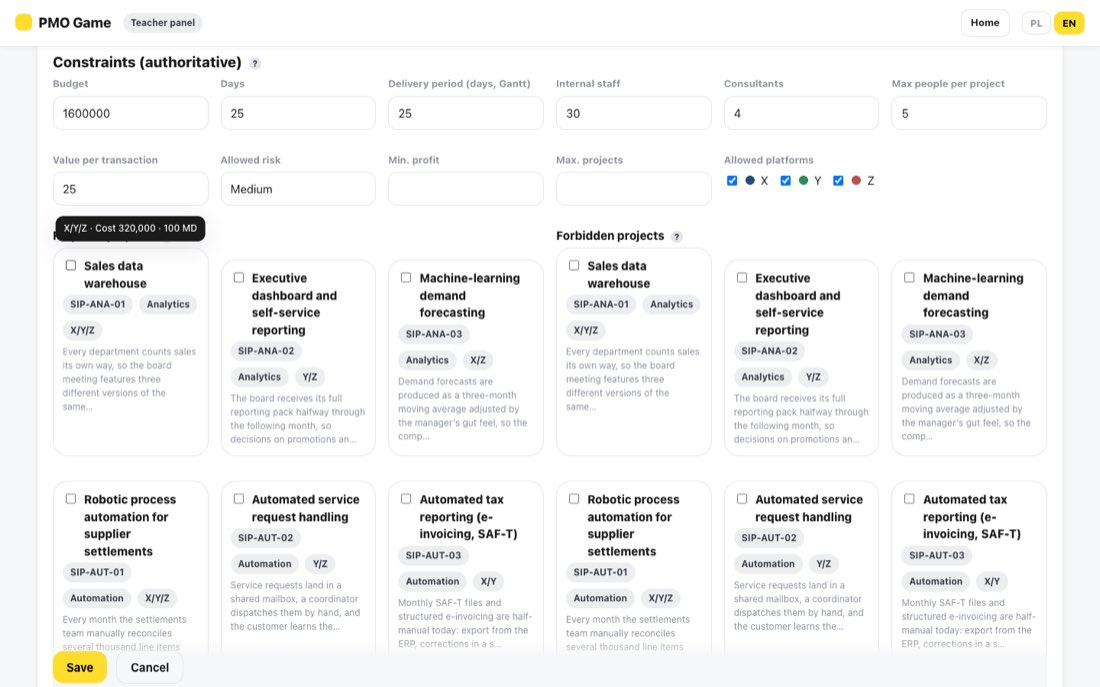
Ograniczenia (autorytatywne) — budżet, dni, okres harmonogramu, pracownicy, konsultanci, limit osób na projekt, wartość transakcji, dozwolone ryzyko i platformy, Wymagane projekty, Zakazane projekty. Według nich serwer ocenia portfel i liczy optimum.
Tryb limitów: Student wpisuje sam (student odczytuje limity z opisu i jest z tego oceniany) albo Ustalone z góry. Opcja Pokaż zysk studentowi ujawnia gotowy zysk projektów.
Na końcu kliknij Zapisz.
Tytuł i opis kejsu w dwóch językach.Ograniczenia, według których oceniany jest portfel.
Nie zmieniaj ograniczeń gry, gdy studenci już wysyłają wyniki: wcześniejsze zgłoszenia zostały ocenione według starych ustawień i ranking przestanie być porównywalny.
4. Etap realizacji i ustawienia symulacji
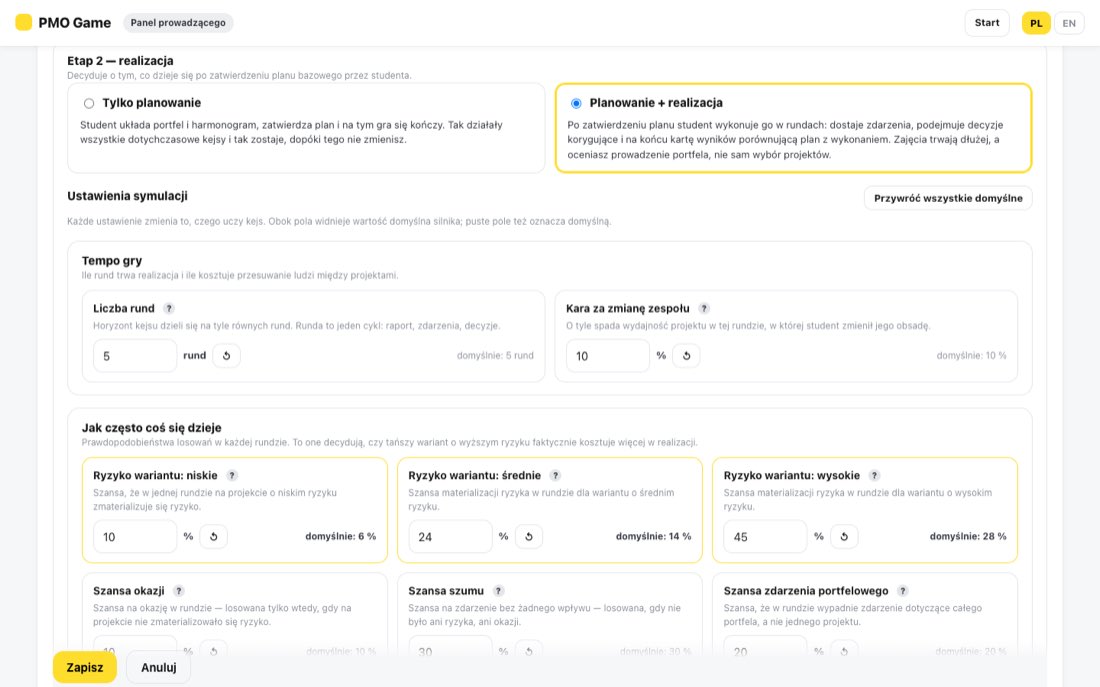
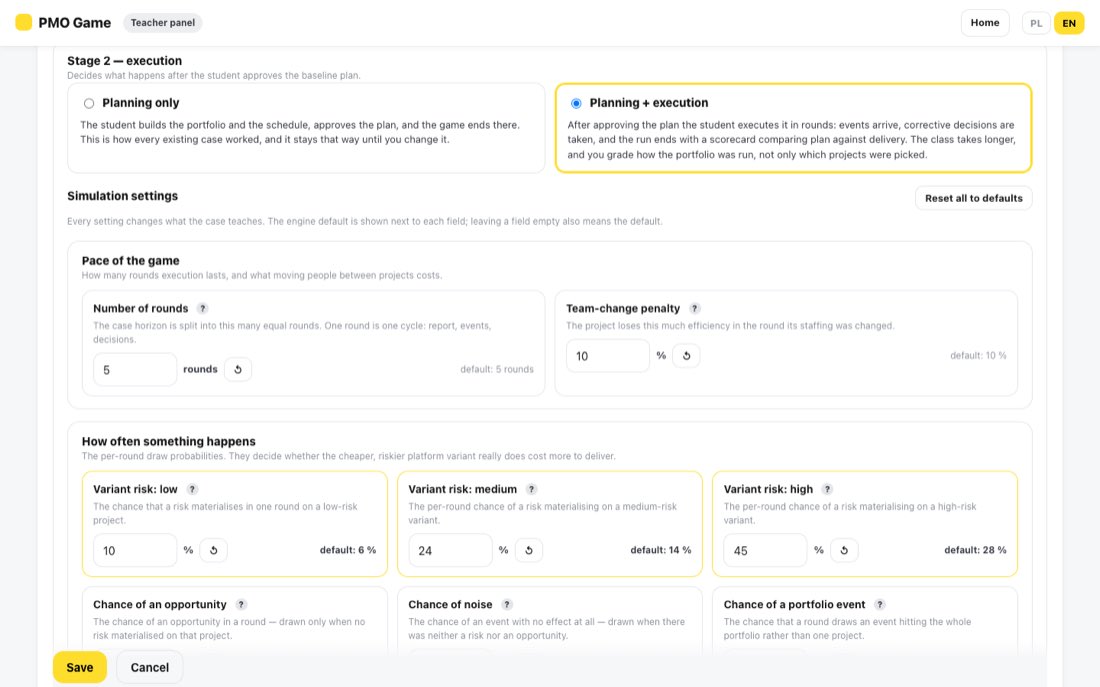
W sekcji Etap 2 — realizacja wybierasz Tylko planowanie albo Planowanie + realizacja. W drugim trybie student po zatwierdzeniu planu prowadzi go przez rundy.
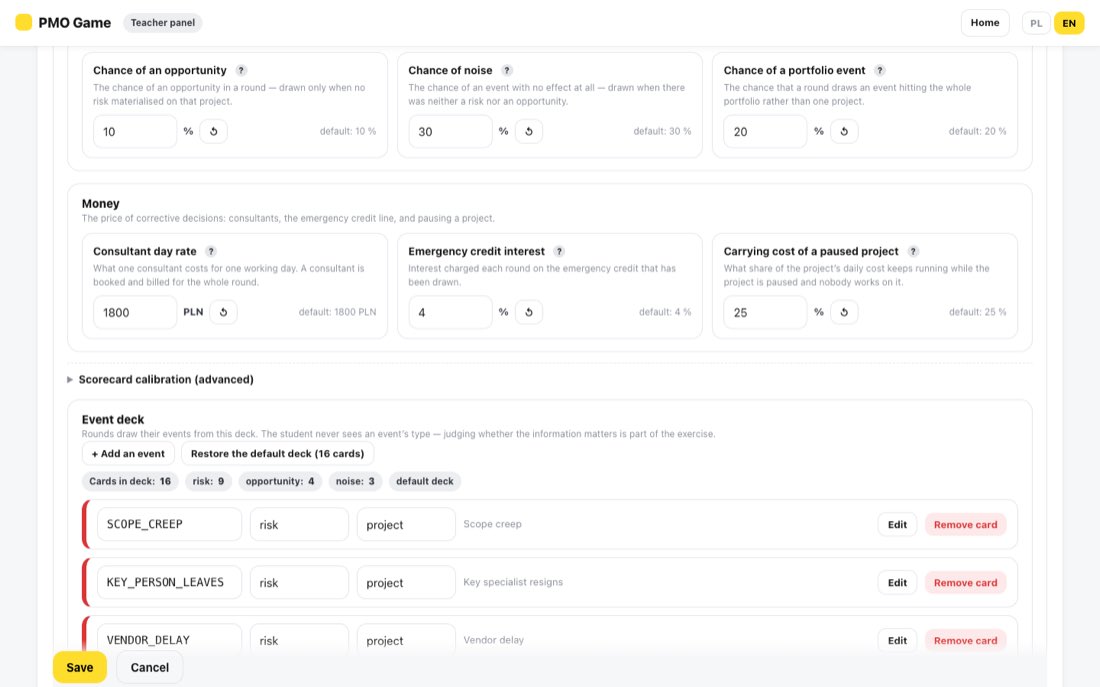
Ustawienia symulacji są pogrupowane według tego, na co wpływają. Obok każdego pola widać wartość domyślną silnika; Przywróć wszystkie domyślne cofa zmiany.
Tryb gry i prawdopodobieństwa zdarzeń.
Wskazówki z pomiarów (średnie z 60–80 symulowanych przebiegów na ustawienie):
Kejs korporacyjny. Przy domyślnych prawdopodobieństwach ryzyka (6 / 14 / 28 %) optymalny plan przechodzi niemal bez strat i aktywne zarządzanie poprawia wynik tylko o ok. 2,5 %. Przy 10 / 24 / 45 % (tak ustawiona jest gra demonstracyjna) zarządzanie daje ok. 4 %, a plan nadal da się uratować.
Kejs startupowy. Przy domyślnych 5 rundach (po 8 dni) plan wykonany bez korekt kończy ok. połowę projektów, bo ludzie są zajęci do końca rundy — dobre przekazywanie ludzi między projektami poprawia wynik o ok. 37 %. Przy 8 rundach (po 5 dni) plan wykonuje się w ok. 83 %, ale decyzje w rundach mało zmieniają wynik. Wybierz według tego, czego chcesz uczyć.
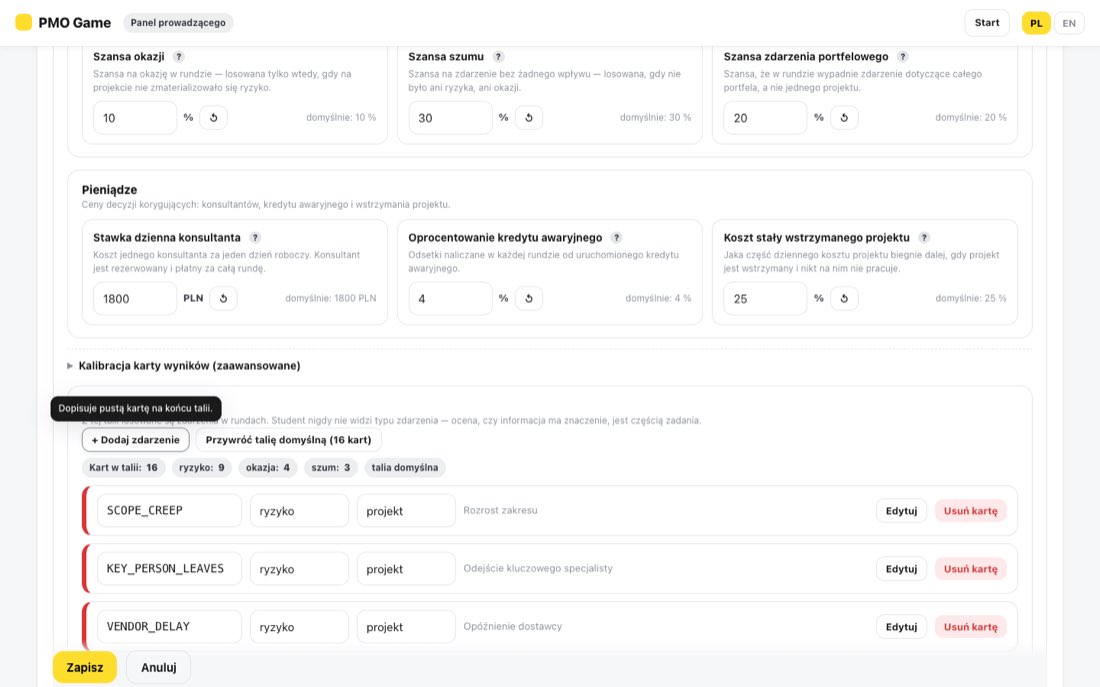
Ustawienia: pieniądze i kalibracja karty wyników.
5. Talia zdarzeń
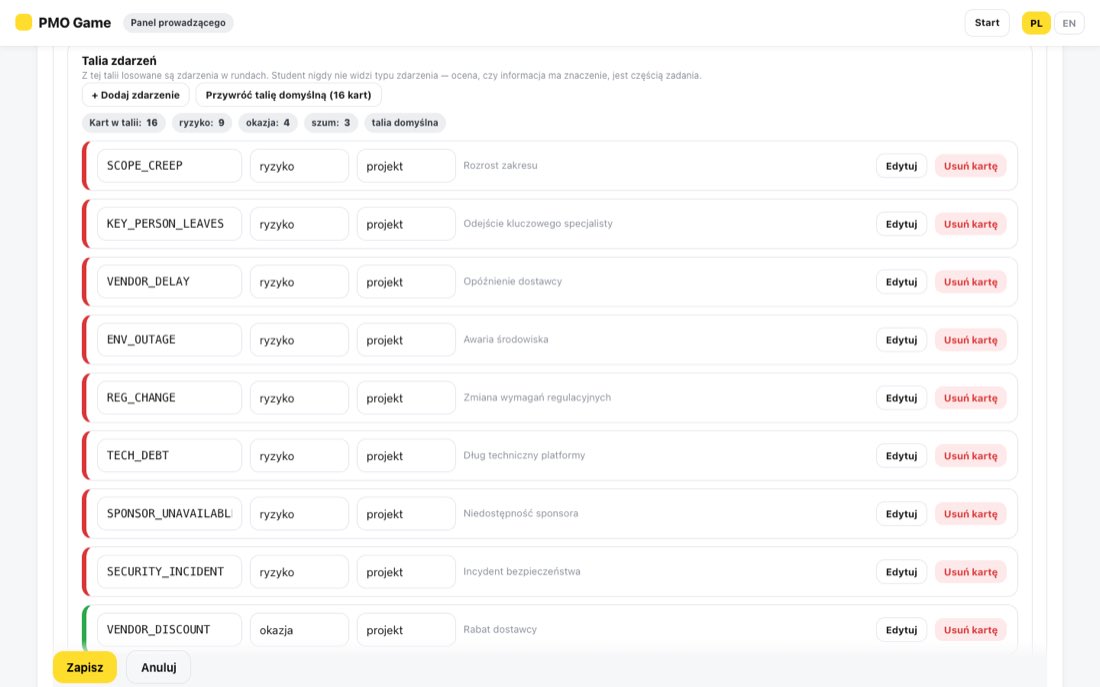
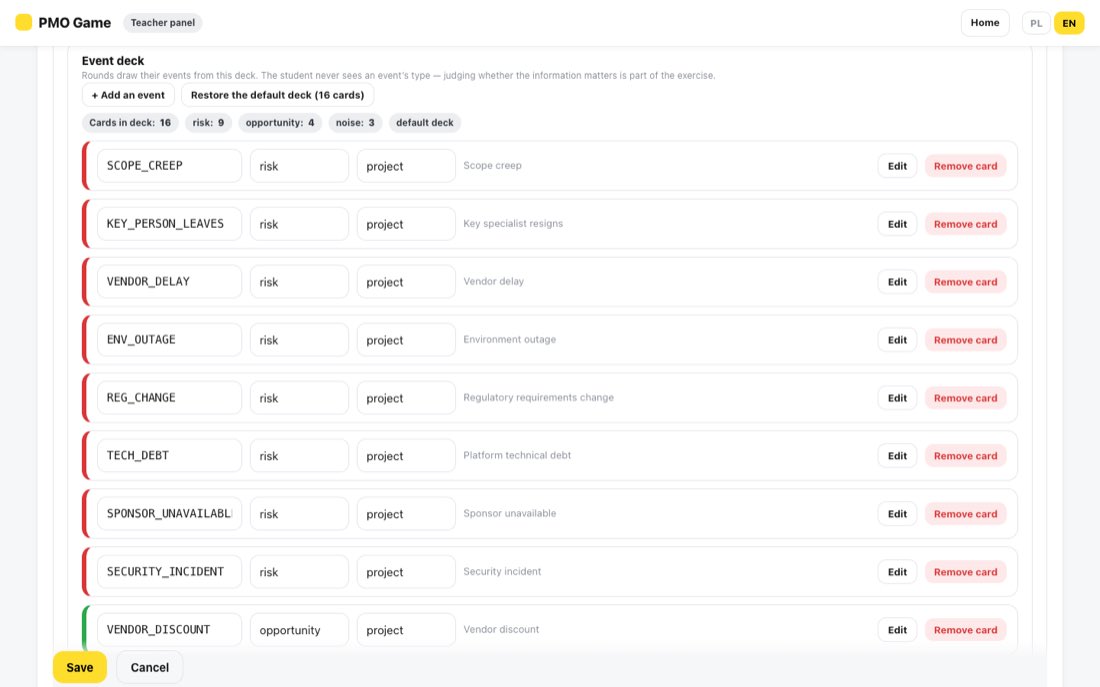
Z Talia zdarzeń losowane są zdarzenia rund. Typy: ryzyko, okazja i szum — ten ostatni nie wpływa na nic i służy temu, by student oceniał, czy informacja ma znaczenie. Student nigdy nie widzi typu zdarzenia, więc nie zdradzaj go w opisie. Zdarzeniu możesz dodać opcje decyzji z kosztem. Przywróć talię domyślną (16 kart) przywraca wersję wyjściową.
Edycja talii zdarzeń.
6. Ranking i ocena zgłoszeń
Ranking pokazuje zgłoszenia w kolejności: najpierw pełne, poprawne plany (portfel i harmonogram), potem poprawne portfele z błędnym lub brakującym harmonogramem, na końcu portfele naruszające ograniczenia — w każdej grupie według zysku. W grze z etapem realizacji przełączasz Ranking realizacji i Ranking planu.
% optimum — dla portfela z naruszeniami widać kreskę. Oznaczenie szacunkowo znaczy, że optimum policzono niedokładnie.
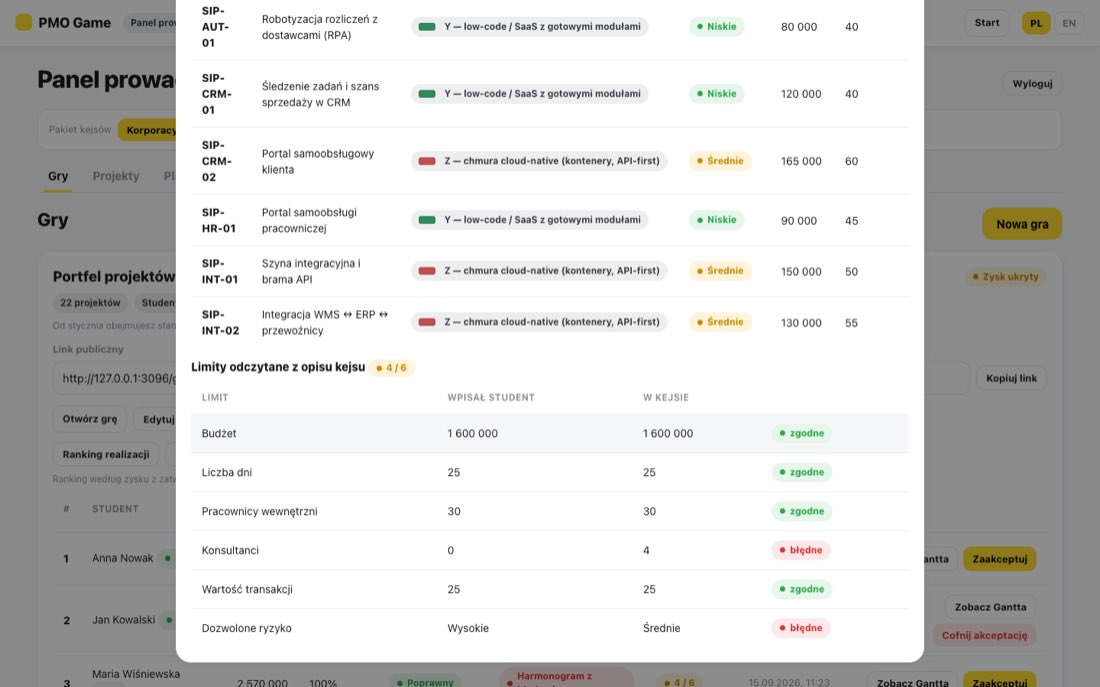
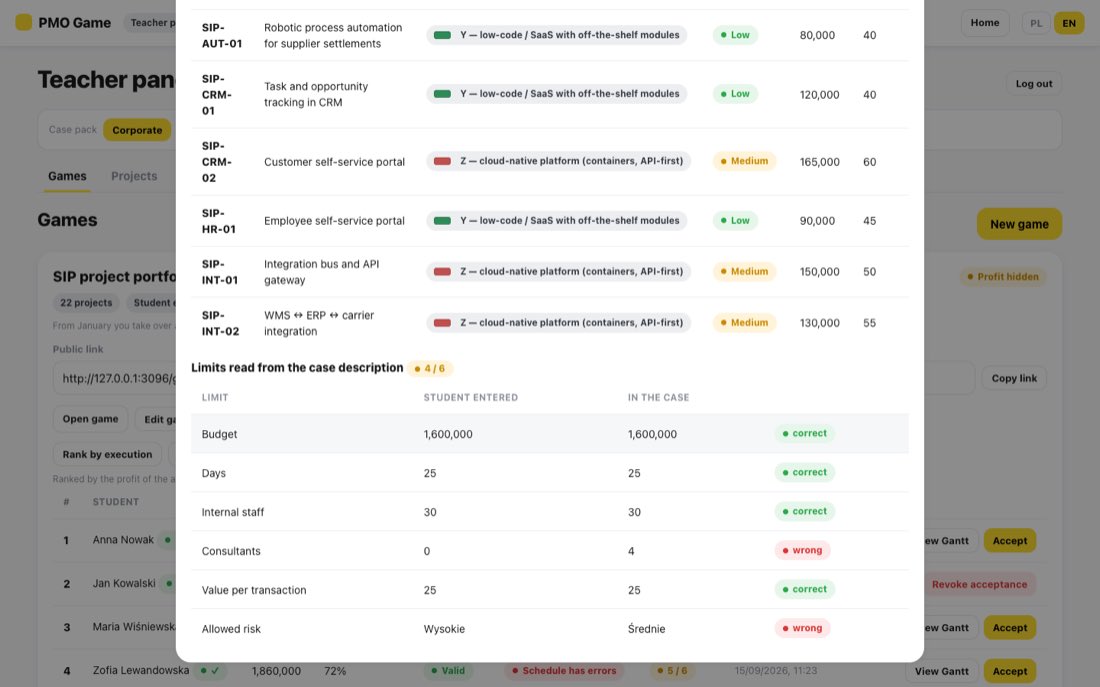
Limity z opisu — ile limitów student poprawnie odczytał z kejsu (w trybie Student wpisuje sam).
Zobacz Gantta — harmonogram, wybór platform z ryzykiem i tabela limitów: co wpisał student, a co jest w kejsie.
Zaakceptuj / Cofnij akceptację — zaakceptowane zgłoszenie ma znacznik ✓ przy nazwisku.
Ranking planu.Zgłoszenie: wybór studenta i limity odczytane z opisu.
7. Przebiegi realizacji
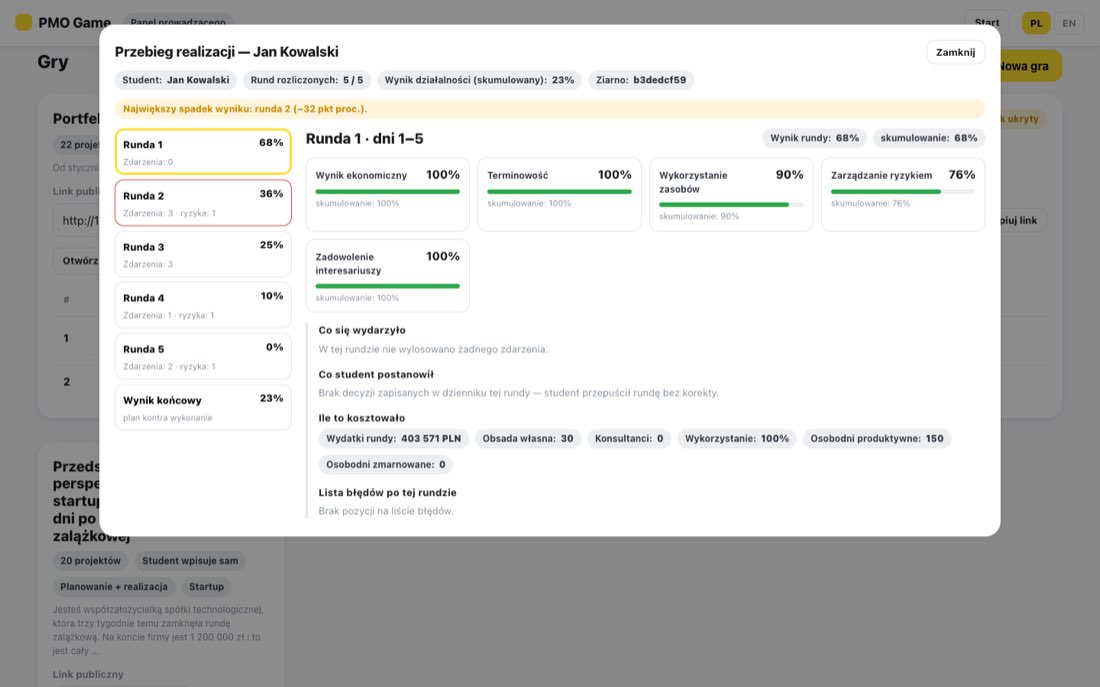
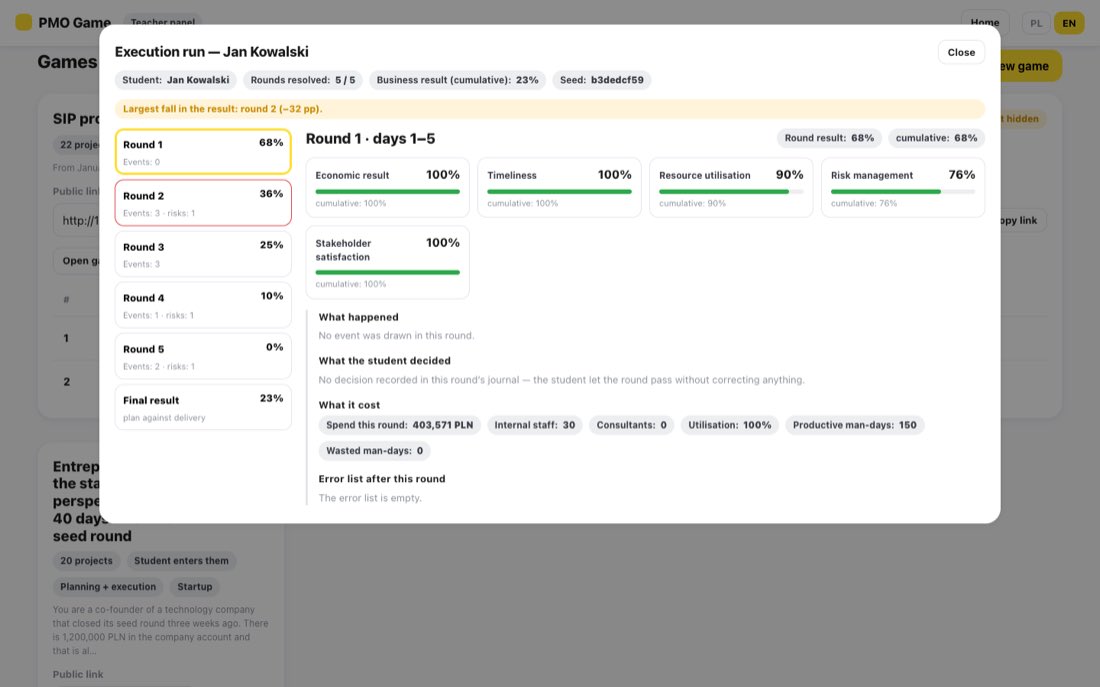
Przebiegi realizacji zbierają rundy studentów. Otwórz przebieg pokazuje rundę po rundzie: co się wydarzyło, co student postanowił, ile to kosztowało i listę błędów, a na końcu Wynik końcowy — plan kontra wykonanie. Panel wskazuje rundę z największym spadkiem wyniku.
Domyślnie zdarzenia zależą od planu: dwaj studenci z identycznym planem dostają identyczne zdarzenia, dzięki czemu wyniki są porównywalne.
Przegląd przebiegu runda po rundzie.
8. Biblioteka projektów i platformy
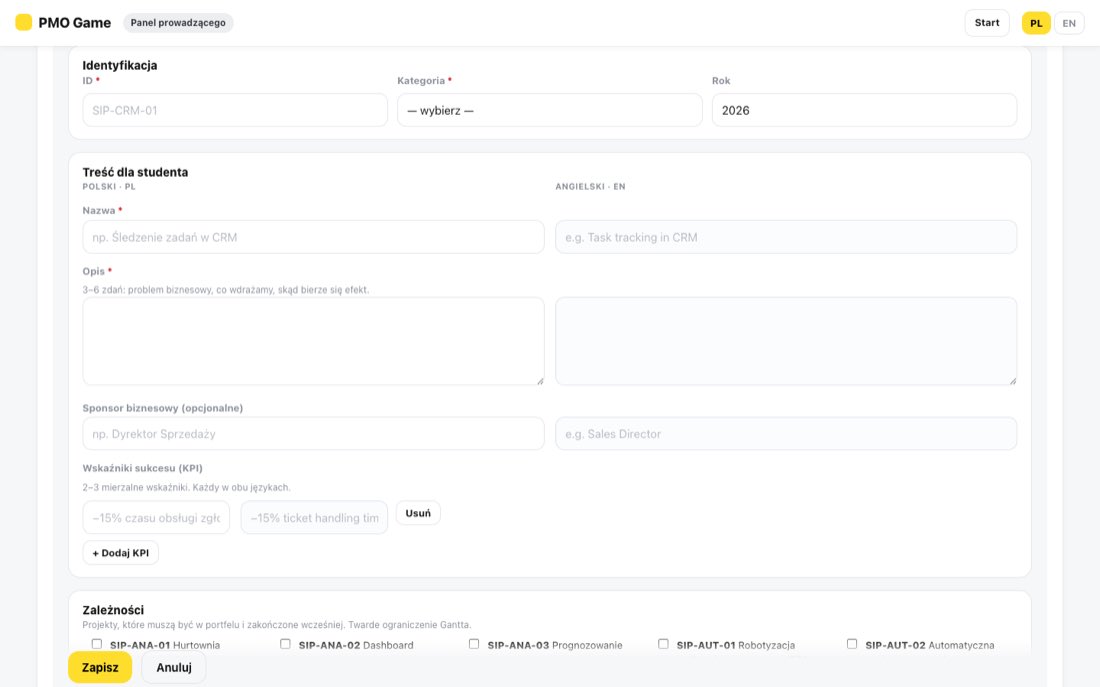
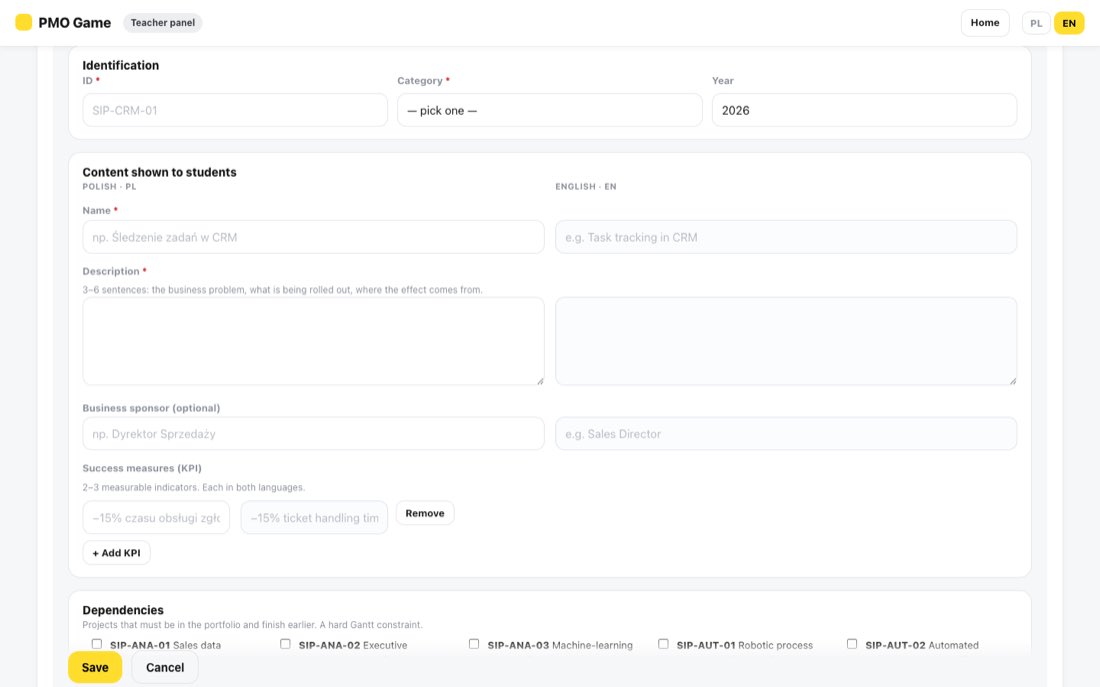
W zakładce Projekty przycisk Dodaj projekt otwiera edytor. Nazwa i opis są wymagane po polsku i po angielsku. Ryzyko należy do wariantu platformowego, nie do projektu. Puste pole kosztu lub pracochłonności jest błędem, a zero trzeba potwierdzić — zera psują wyznaczanie optimum.
W zakładce Platformy edytujesz opisy X, Y, Z danego pakietu. Gra zamraża opisy platform w chwili zapisu: zmiana nie dotrze do istniejących gier, dopóki nie zapiszesz gry ponownie.
Edytor projektu.
Pytania i problemy
Nie znaleziono gry. — link jest niepełny albo gra została usunięta. Poproś prowadzącego o aktualny link.
Runda odrzucona — popraw błędy blokujące. — otwórz Lista błędów i usuń czerwone pozycje.
Stan odświeżony z serwera — ta runda była już rozliczona. — ten sam przebieg był otwarty w innej karcie lub na innym urządzeniu. Ekran pokazuje teraz aktualny stan.
Brak przycisku Rozpocznij realizację. — gra jest w trybie Tylko planowanie albo plan narusza ograniczenia.
Kontynuacja na innym komputerze — otwórz zapisany adres z ?run=….
User guide
PMO Portfolio Game is a project-portfolio management simulation: students choose projects and platforms, schedule them, and then — if the teacher enables the execution stage — steer the portfolio through rounds full of events.
Open the link your teacher sent you. Switch the language with PL / EN in the top right corner — at any time, without losing your choices.
Case description and portfolio summary.
2. Read the case and enter the limits
Read the Case description. If the game shows Your limits, the constraints are not stated outright — read them out of the text and enter them: budget, days, internal staff, consultants, value per transaction and allowed risk. This is part of the exercise: your teacher sees how many limits you read correctly. Max people per project is already filled in.
The portfolio summary and warnings check violations against your limits. The result your teacher sees is scored by the server against the case's real limits — a misread limit gives you a false sense that the plan is valid.
Limits entered from the case description.
3. Choose projects and platforms
Each project is delivered on exactly one platform — a project cannot be split across two. Different projects in the portfolio can use different platforms, and what a project costs and delivers depends on the platform you pick. Platform choice compares cost, man-days, business effect and — importantly — the variant's risk. The reasoning behind the numbers is under Why these numbers. A cheaper variant may carry a risk the case rules do not allow. Tick Add to portfolio to include a project.
Platform variants: each with its own cost, effect, effort and risk.
4. Project card
Project card opens the full description: What it does, Success measures, Dependencies (Needs first and Needed by) and Platform variants side by side, where Choose selects a variant.
A dependent project needs its predecessor in the portfolio and can only start after that predecessor has finished.
Project card.
5. Build the schedule
In Gantt chart — schedule set each project's Start day and Team (people). Duration = man-days ÷ team. You can also drag a bar sideways (start day) or drag its right edge (team size). Keep Peak load at or below Available staff; a red bar means a violation.
A schedule loaded exactly to the staff limit.
6. Submit your result
Enter Name / team and click Submit result. You will see the profit, the share of the optimum, your Rank and the verdict on the portfolio and the schedule. Every submission is a separate entry.
Result of a valid plan.
7. The execution stage (if your teacher enabled it)
Start execution appears under the result — only for a plan that meets the constraints. From then on the plan is delivered in rounds.
Keep the page address. Once execution starts, the address contains your run's identifier (?run=…). Opening that address brings you back to the same round on another computer. Do not share it — whoever has it drives the run.
The start of execution.
Each round goes Report → Events → Decisions → Commit decisions. A committed round cannot be undone.
Report shows the gap between plan and delivery: progress, spending, completion forecast.
Events are the round's news. Not all of it matters — judging which items affect the portfolio is part of the exercise. Some events ask for a response; without one, the default effect applies.
Decisions: for each project Continue, Start, Pause or Cancel, plus Team (internal people), Consultants and Descoping. Every move shows its consequence before you commit it.
Scorecard: five indicators multiplied into the headline score. One weak indicator drags the whole score down, and a negative economic result zeroes it.
Error list: red items block the round, orange ones are probably-wrong decisions, blue ones are unused opportunities. Fix jumps to the project concerned.
The round's events — only some affect the portfolio.Corrective decisions.Scorecard: the product of five indicators.Error list.
The rules that most often decide the result
People are assigned for a whole round. If a predecessor finishes mid-round, its team stays busy until the round ends and the next project can only start in the following round — unless you shrink the finishing project's team and hand those people over.
Consultants do not count towards the people-per-project limit, but you pay for them for the whole round and they usually work more slowly than your own team.
Cancel: the money already spent is gone and the project delivers no effect.
Descoping: less work, but a proportionally smaller business effect and lower stakeholder satisfaction.
The scorecard after the last round.
For teachers
1. Signing in
The panel is at /admin. The password is provided by the application administrator. Log out forgets the password on that device.
Signing in to the panel.
2. Games and case packs
Above the tabs you choose the Case pack: Corporate (an SIP programme in a company) or Startup (the first weeks after a seed round). The pack applies to the project library, the platforms and the game builder. X, Y and Z mean different things in each pack, so a game uses one pack.
Both demonstration games are ready to use. On a game card: the public link and Copy link (send it to the group), Open game, Edit game, Leaderboard, Execution runs and Delete.
Deleting a game cannot be undone — you also lose access to its submissions and runs.
The games list with the pack switch.
3. Creating and editing a game
New game opens the builder. A separate game per group works best.
Case text for students — title and description in Polish and English. It is the only text students see, so describe the constraints in words.
Projects in the game — tick the projects students build their portfolio from.
Constraints (authoritative) — budget, days, schedule period, staff, consultants, people per project, value per transaction, allowed risk and platforms, Required projects, Forbidden projects. The server scores portfolios and computes the optimum against these.
Limits mode: Student enters them (students read the limits from the text and are graded on it) or Fixed in advance. Show profit to student reveals ready-made project profit.
Finish with Save.
The case title and text in two languages.The constraints portfolios are scored against.
Do not change a game's constraints once students are submitting: earlier submissions were scored under the old settings and the leaderboard stops being comparable.
4. The execution stage and simulation settings
In Stage 2 — execution choose Planning only or Planning + execution. In the second mode students take their approved plan through rounds.
Simulation settings are grouped by what they affect. The engine default is shown beside every field; Reset all to defaults undoes your changes.
Game mode and event probabilities.
Guidance from measurements (means over 60–80 simulated runs per setting):
Corporate case. With the default risk probabilities (6 / 14 / 28 %) the optimal plan runs almost unscathed and active management improves the score by only about 2.5 %. At 10 / 24 / 45 % (the demonstration game's setting) management is worth about 4 % and the plan is still recoverable.
Startup case. With the default 5 rounds (8 days each) a plan left untouched finishes about half of its projects, because people stay busy until a round ends — handing people over well between projects improves the score by about 37 %. With 8 rounds (5 days each) about 83 % of the plan gets delivered, but round decisions change the score very little. Choose according to what you want to teach.
Settings: money and scorecard calibration.
5. Event deck
Round events are drawn from the Event deck. Types: risk, opportunity and noise — noise affects nothing and exists so students judge whether information matters. Students never see an event's type, so do not give it away in the description. You can add priced decision options to an event. Restore the default deck (16 cards) brings back the original.
Editing the event deck.
6. Leaderboard and grading
The Leaderboard orders submissions: complete valid plans (portfolio and schedule) first, then valid portfolios with a broken or missing schedule, then portfolios that break the constraints — by profit within each group. In a game with the execution stage you switch between Rank by execution and Rank by plan.
% of optimum — a dash for a portfolio that breaks the constraints. estimate means the optimum was computed inexactly.
Limits read — how many limits the student read correctly from the case (in Student enters them mode).
View Gantt — the schedule, the platform choice with risk, and a limits table: what the student entered versus what the case says.
Accept / Revoke acceptance — an accepted submission gets a ✓ next to the name.
Rank by plan.A submission: the student's choice and the limits read from the case.
7. Execution runs
Execution runs collects students' rounds. Open run goes round by round: what happened, what the student decided, what it cost and the error list, ending with Final result — plan against delivery. The panel points out the round with the largest fall in the score.
By default events depend on the plan: two students with an identical plan get identical events, so results stay comparable.
Reviewing a run round by round.
8. Project library and platforms
On the Projects tab, Add project opens the editor. The name and description are required in Polish and English. Risk belongs to the platform variant, not to the project. A blank cost or effort is an error, and zero must be confirmed — zeros break the optimum calculation.
On the Platforms tab you edit the descriptions of X, Y and Z for the selected pack. A game freezes platform descriptions when it is saved: an edit does not reach existing games until you save the game again.
The project editor.
Questions and problems
Game not found. — the link is incomplete or the game was deleted. Ask your teacher for the current link.
Round rejected — fix the blocking errors. — open Error list and clear the red items.
State refreshed from the server — that round was already resolved. — the same run was open in another tab or on another device. The screen now shows the current state.
No Start execution button. — the game is in Planning only mode, or the plan breaks the constraints.
Continuing on another computer — open the address you kept, with ?run=….